Camera Image Details and How to Comment
Click on an image displayed in the camera image list to open the camera image details.
Tip
Click the “Show AI Results” toggle to switch between pre-diagnosis and post-diagnosis images.
Tip
Click “Download Image” to download the captured image.
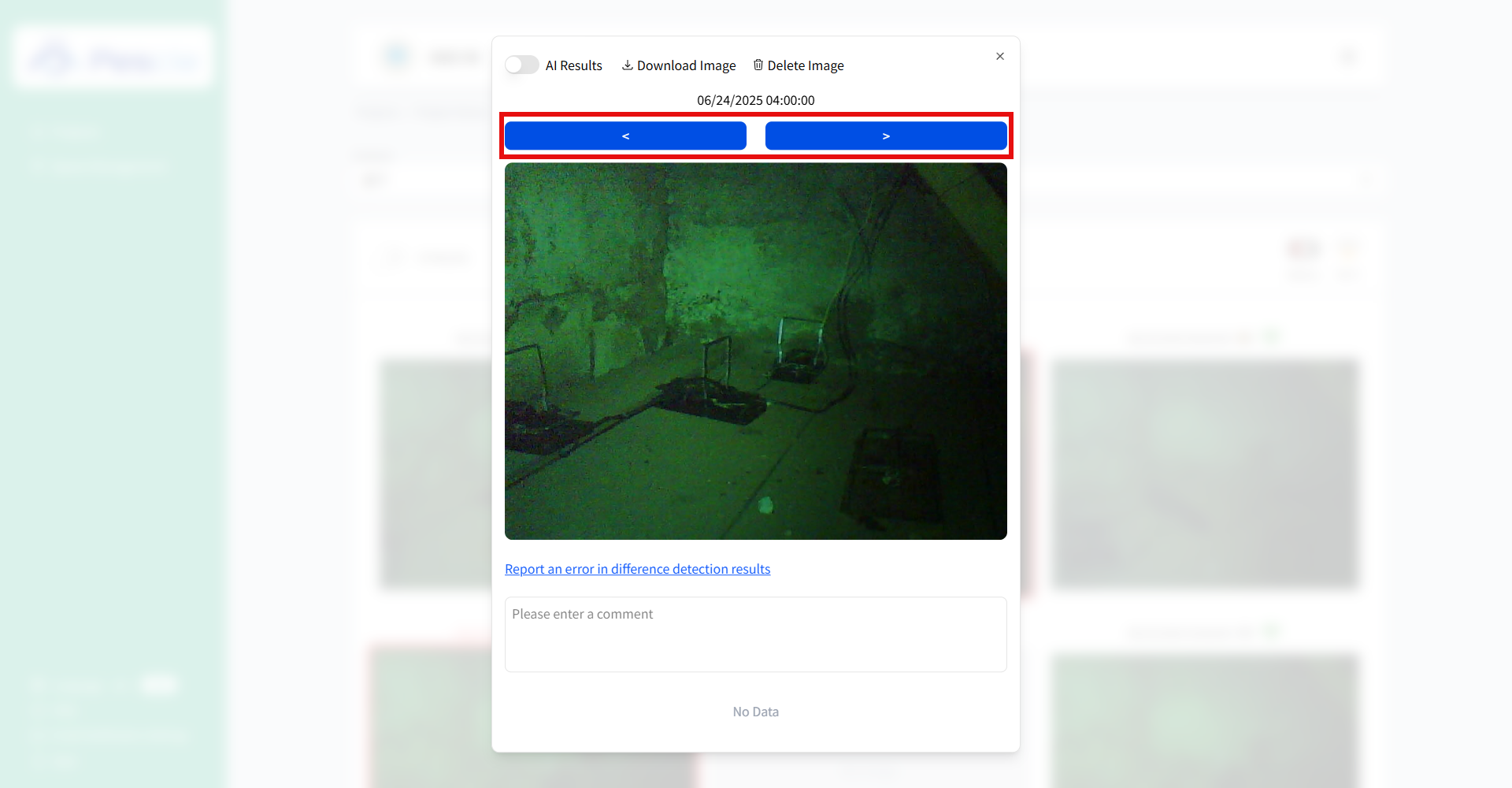
Switching Images
You can switch to the previous or next image from the currently displayed image.
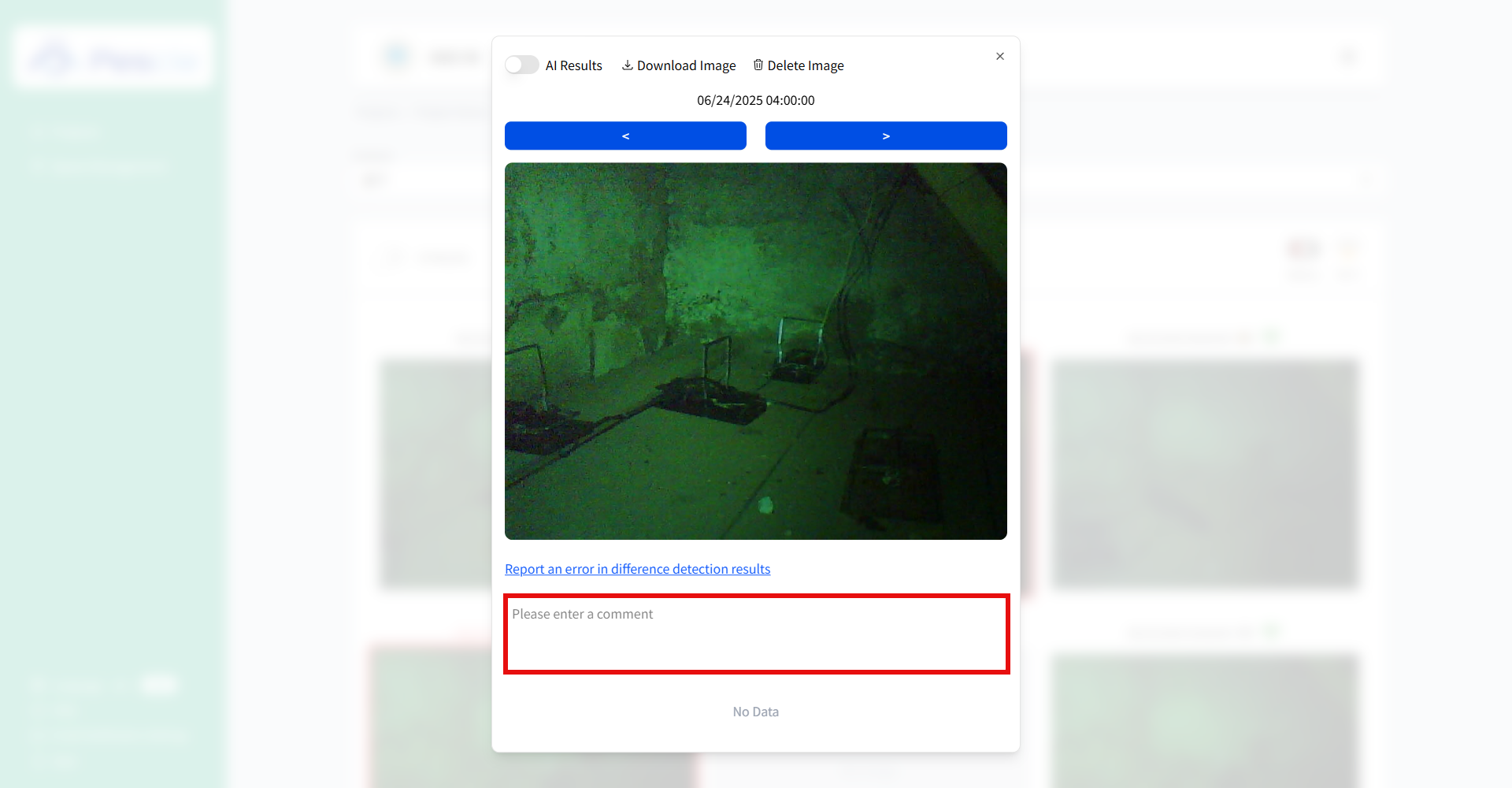
How to Enable the Comment Input Field
Click on the comment input area to enable input.
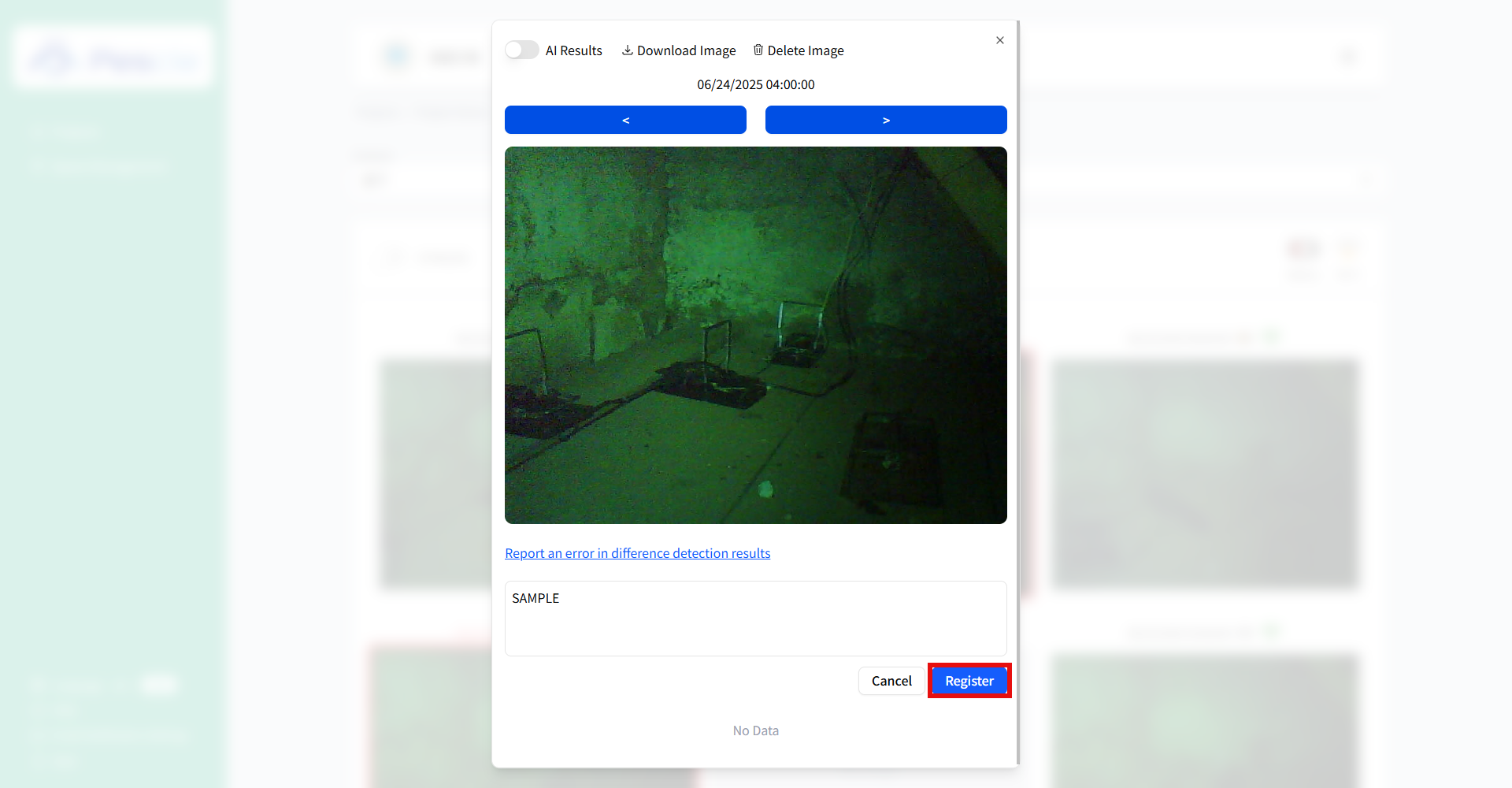
How to Post a Comment
Enter your comment and then click the “Register” button.
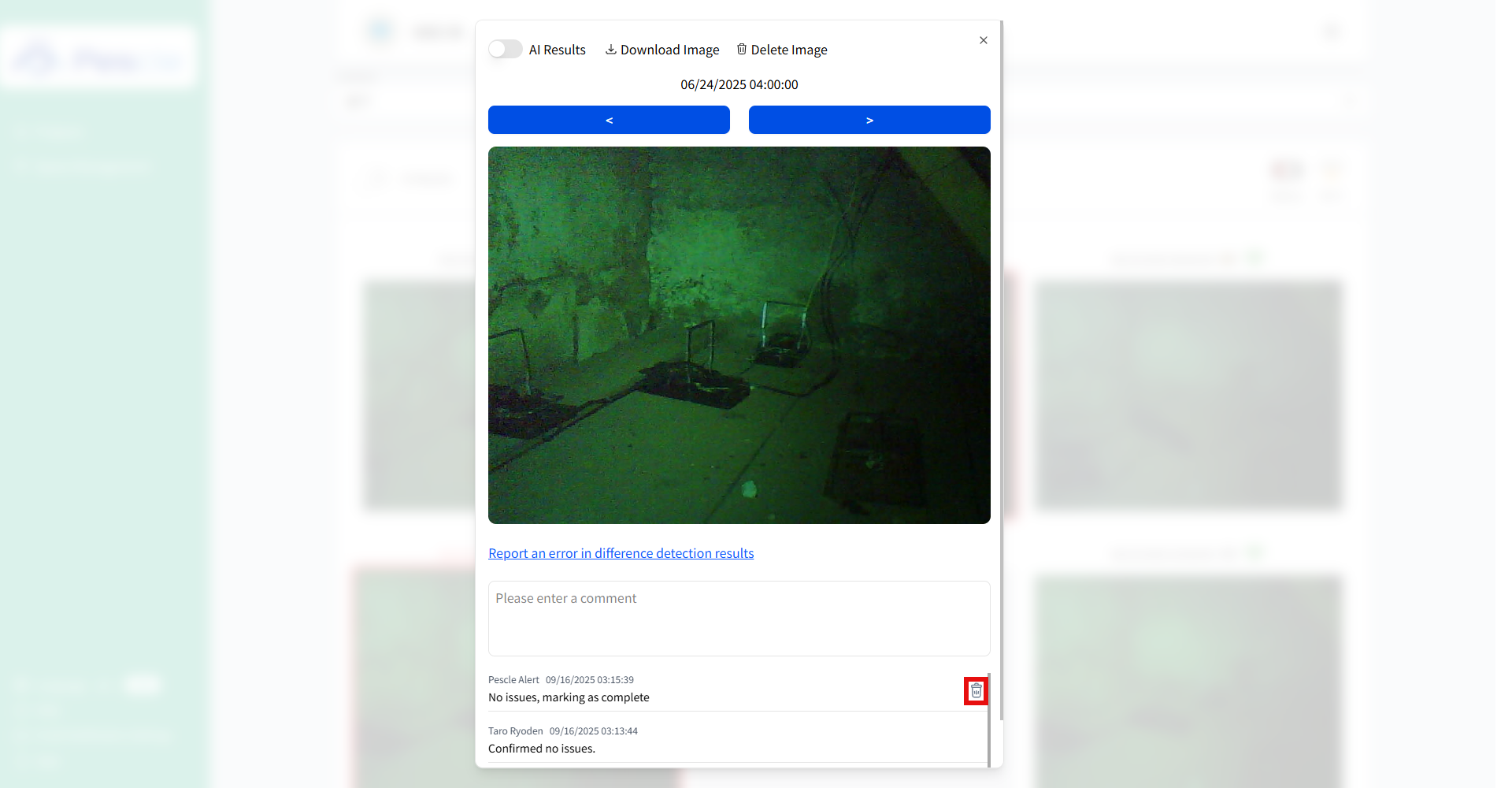
How to Delete a Comment
Comments added by the logged-in user can be deleted.
Deletable comments will show a “Trash” icon on the right end of the comment list.
Click the “Trash” icon to delete the comment.
How to Report Detection Result Errors
If there is an error in the detection result, click the “Report Detection Result Error” link.
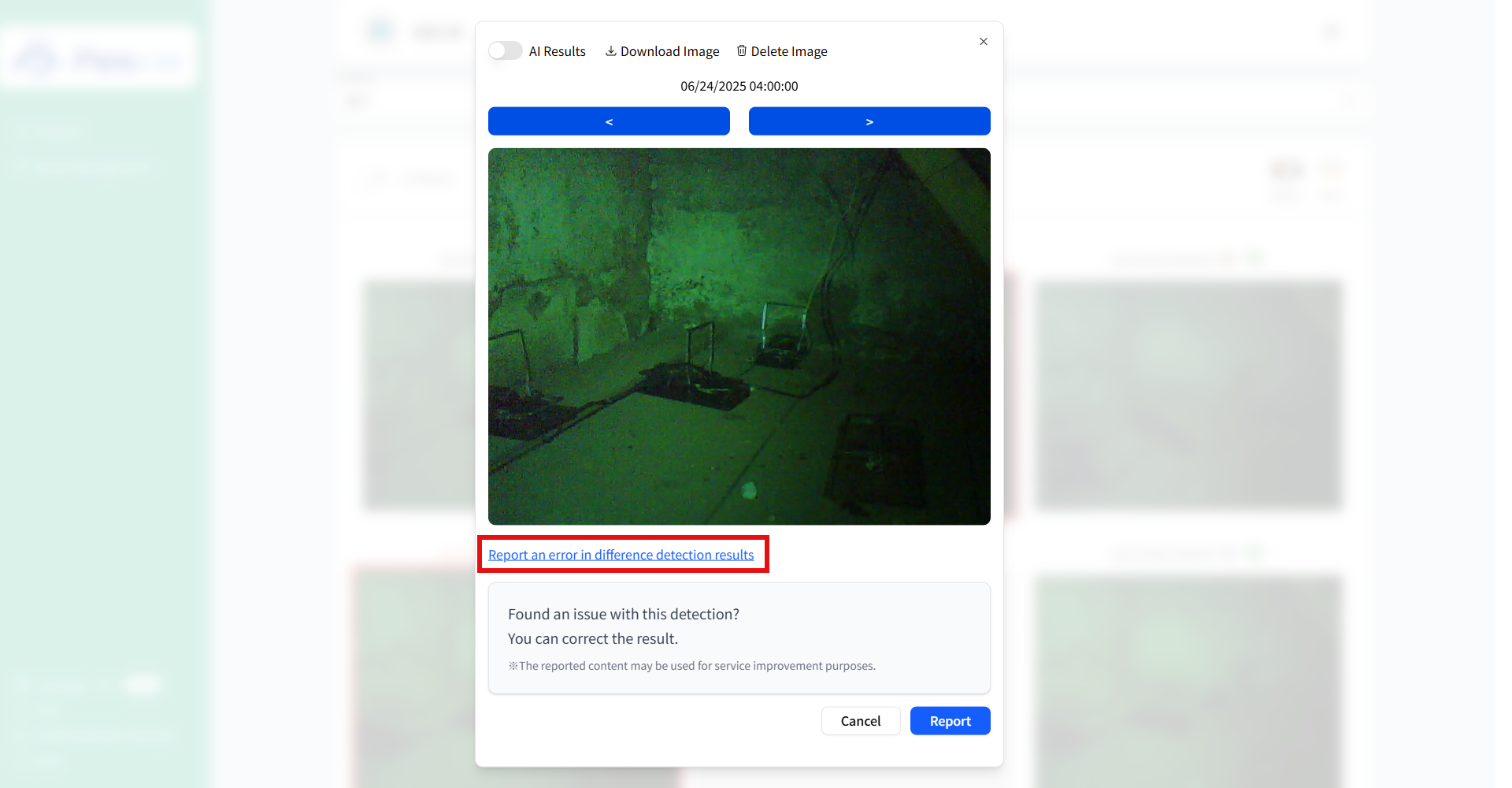
How to Report an Error
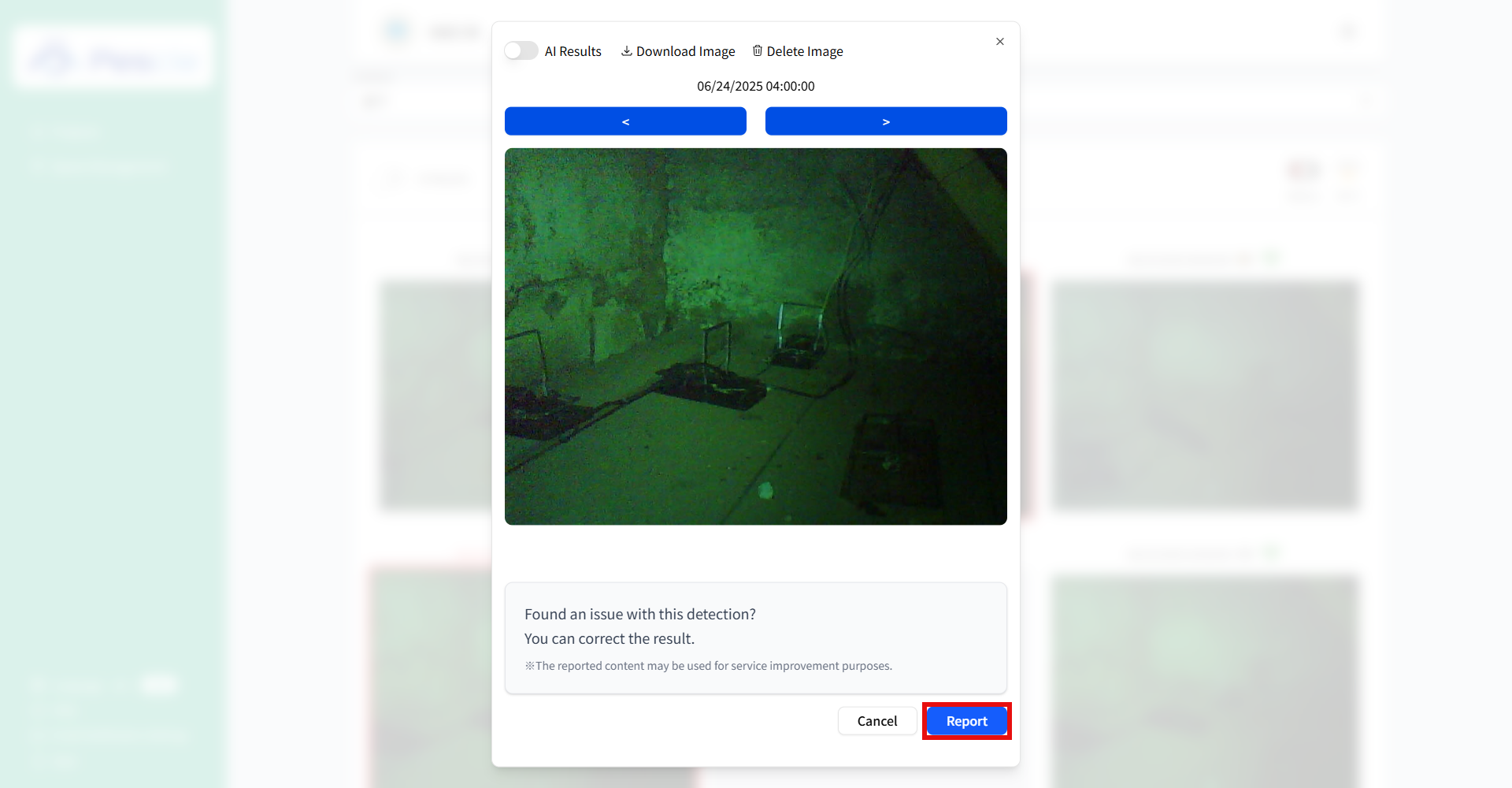
Click the “Report” button to report the error and correct the detection result.
If the detection result is “detected” and alert email reception is enabled, an email will be sent.

How to View the Comment List
Added comments are displayed in the list in order from the most recent comment.