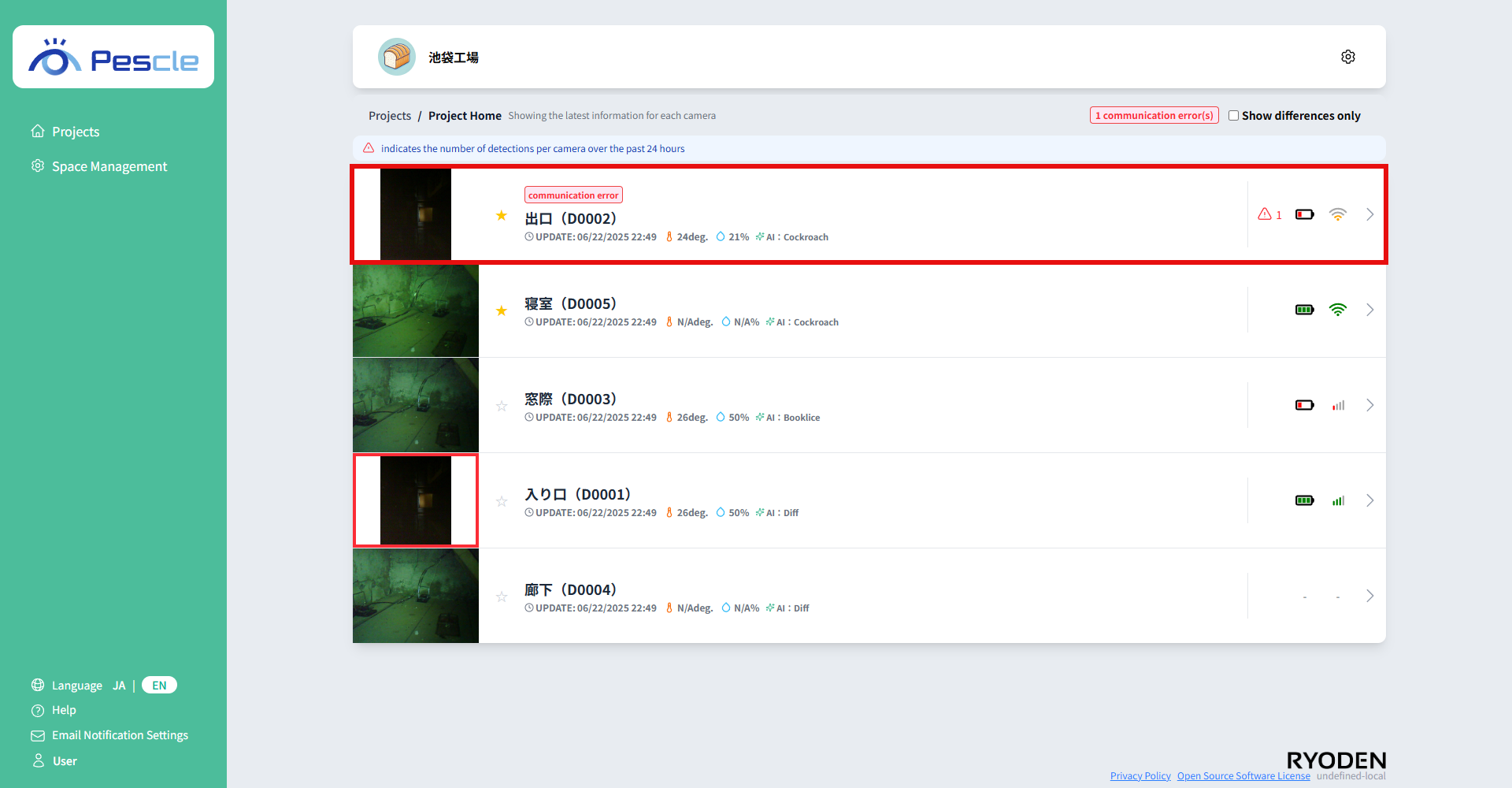
How to View Camera List
After signing in, you can view the project list. Click on the project name where the camera you want to view belongs.
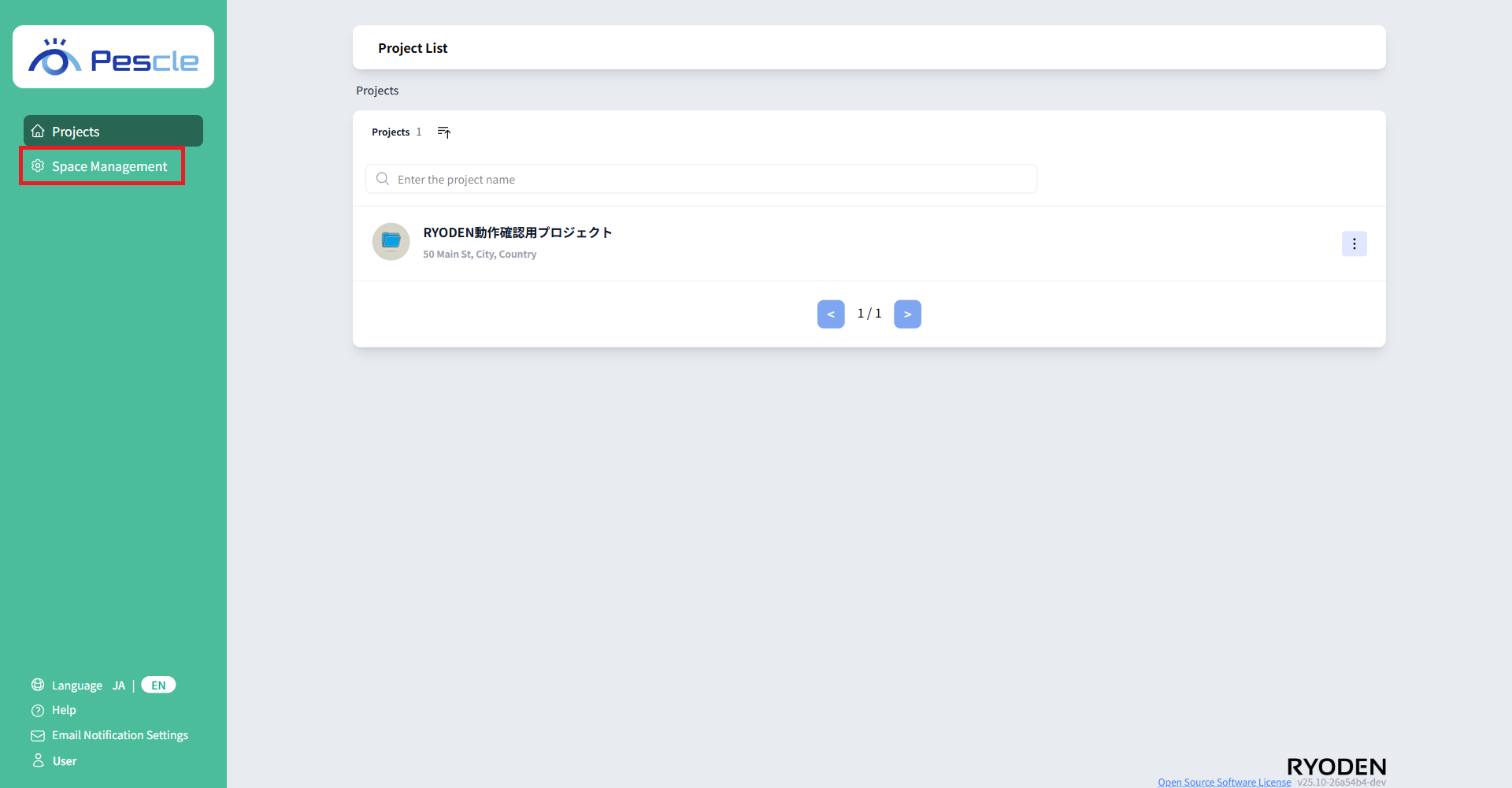
On the project home screen, you can check each camera’s latest image along with the camera name, capture time, temperature, humidity, battery level, and signal strength (LTE/WiFi).
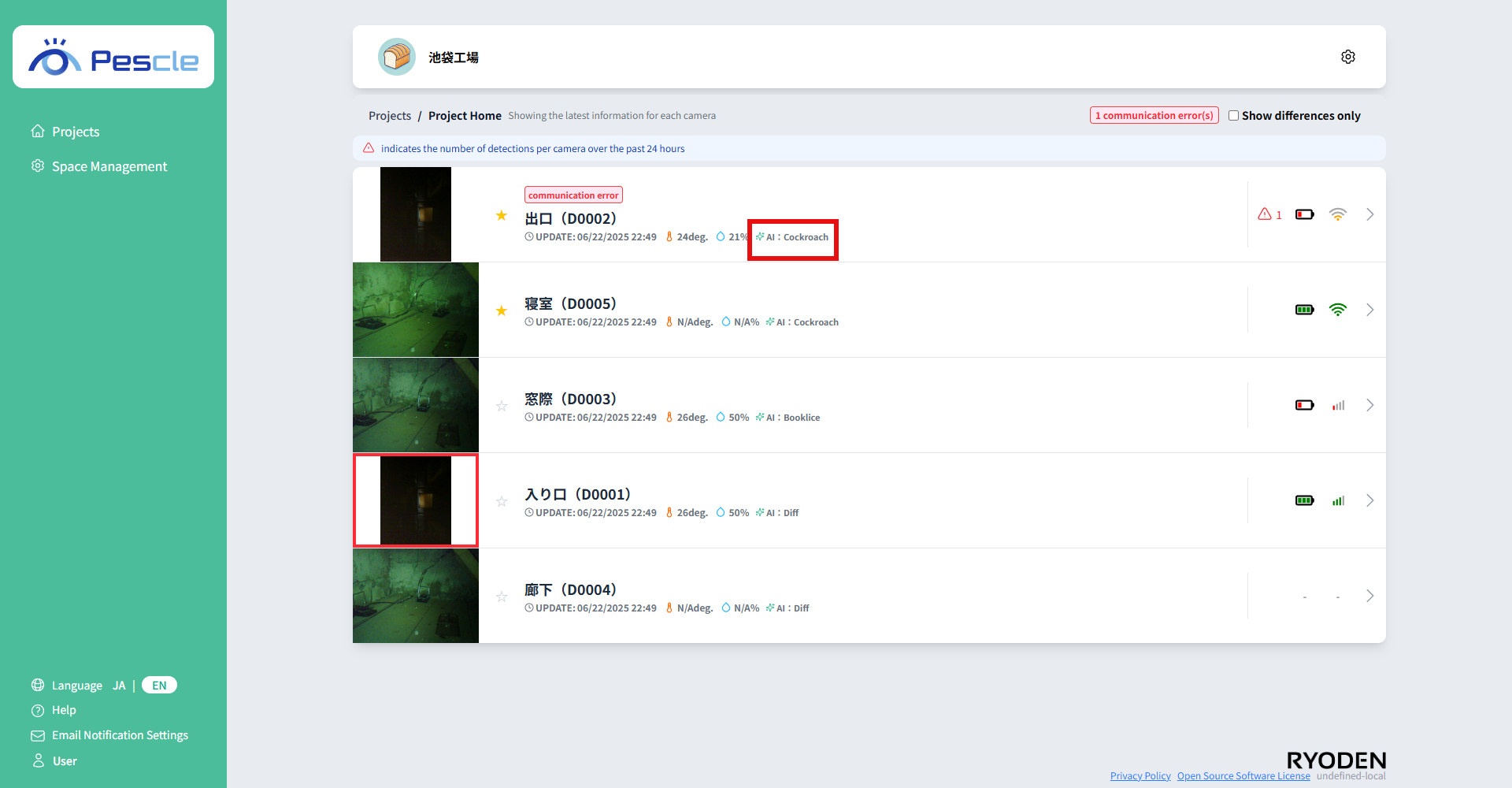
Each camera displays its configured AI detection mode as a badge. “Diff” indicates diff detection, while “Cockroach” and “Booklice” indicate specific pest detection.
favorite
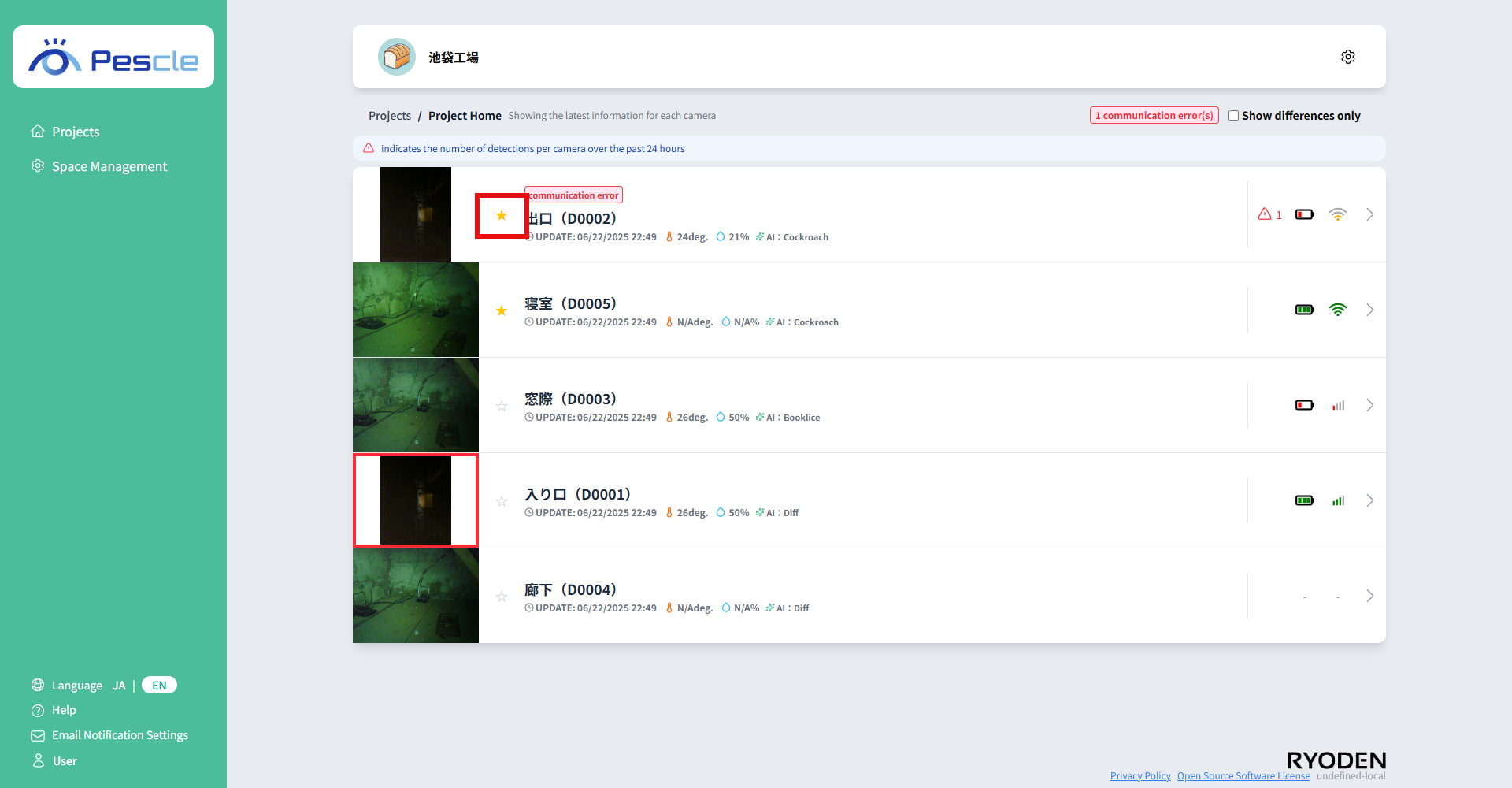
You can add or remove a camera from your favorites by clicking the star icon to the left of the camera name.
Tip
Cameras you’ve added to your favorites will appear at the top of the list.
Communication error
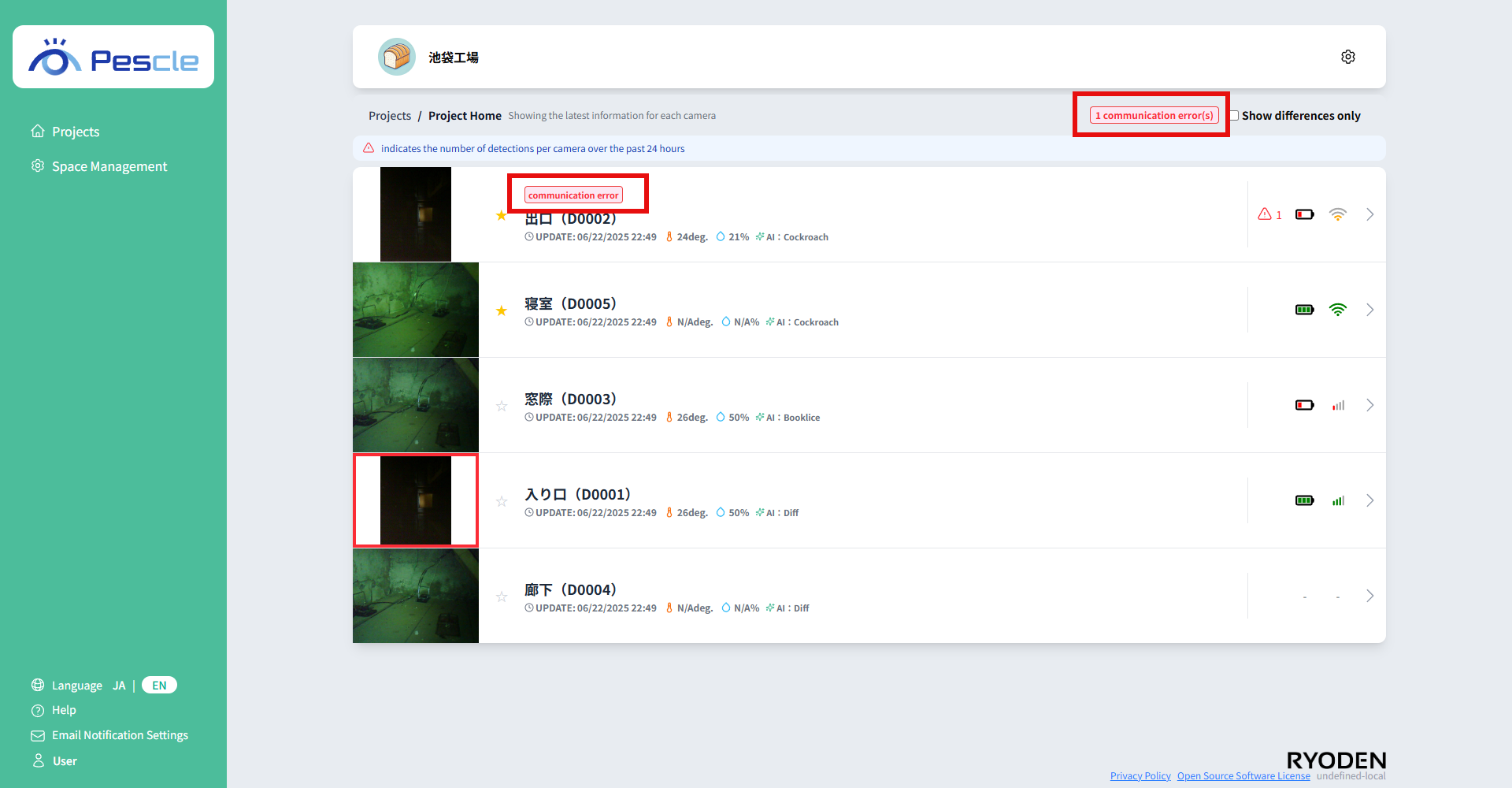
If a camera has not communicated for 24 hours or more, “Communication Error” is displayed as a red badge above the camera name.
In addition, if there are cameras with communication errors in the project, the number of errors is displayed as a red badge at the top of the screen.
Number of differences detected
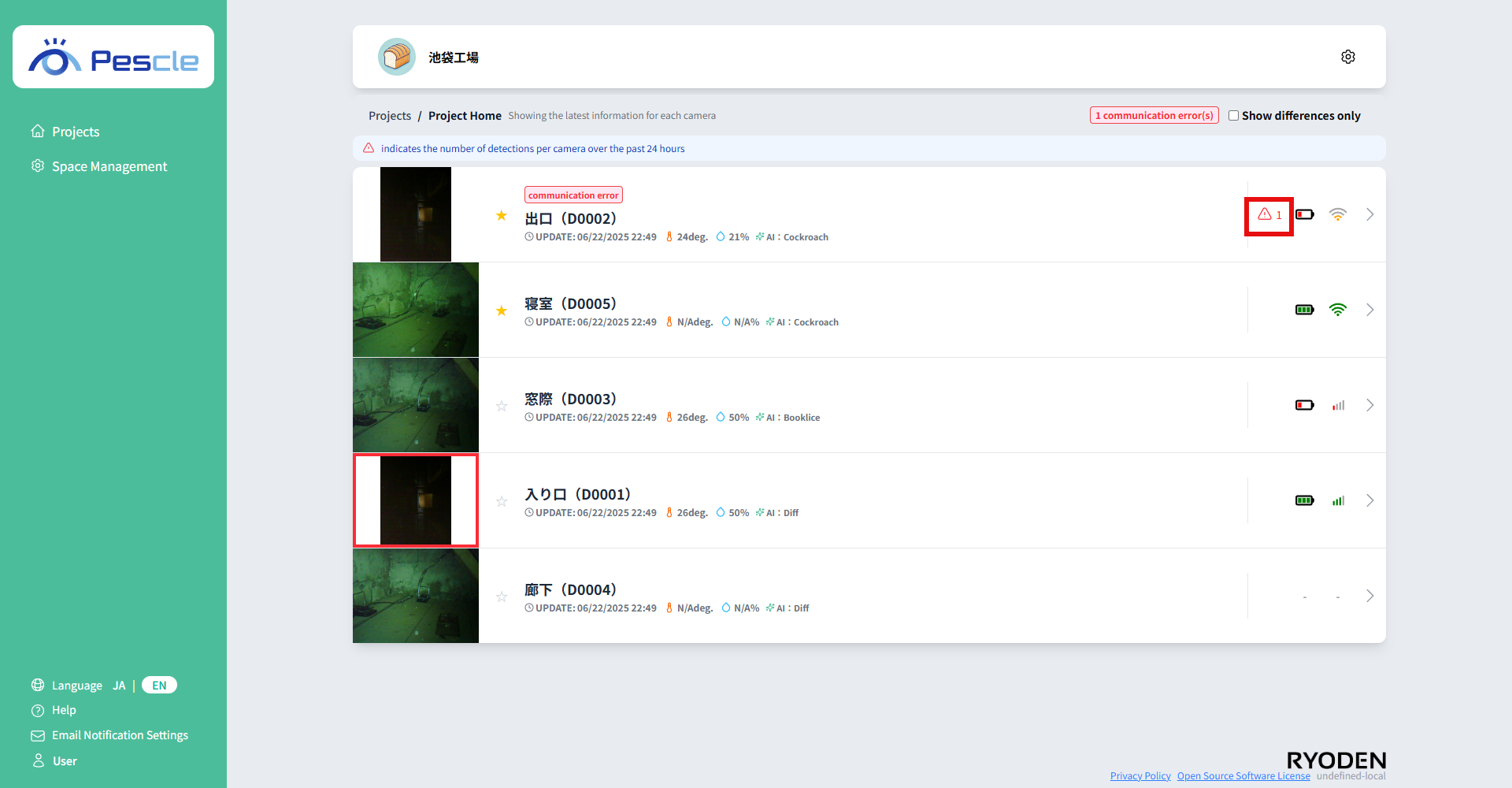
The number of differences detected in the project is displayed next to the triangular icon. If differences are detected, they will be displayed in red.
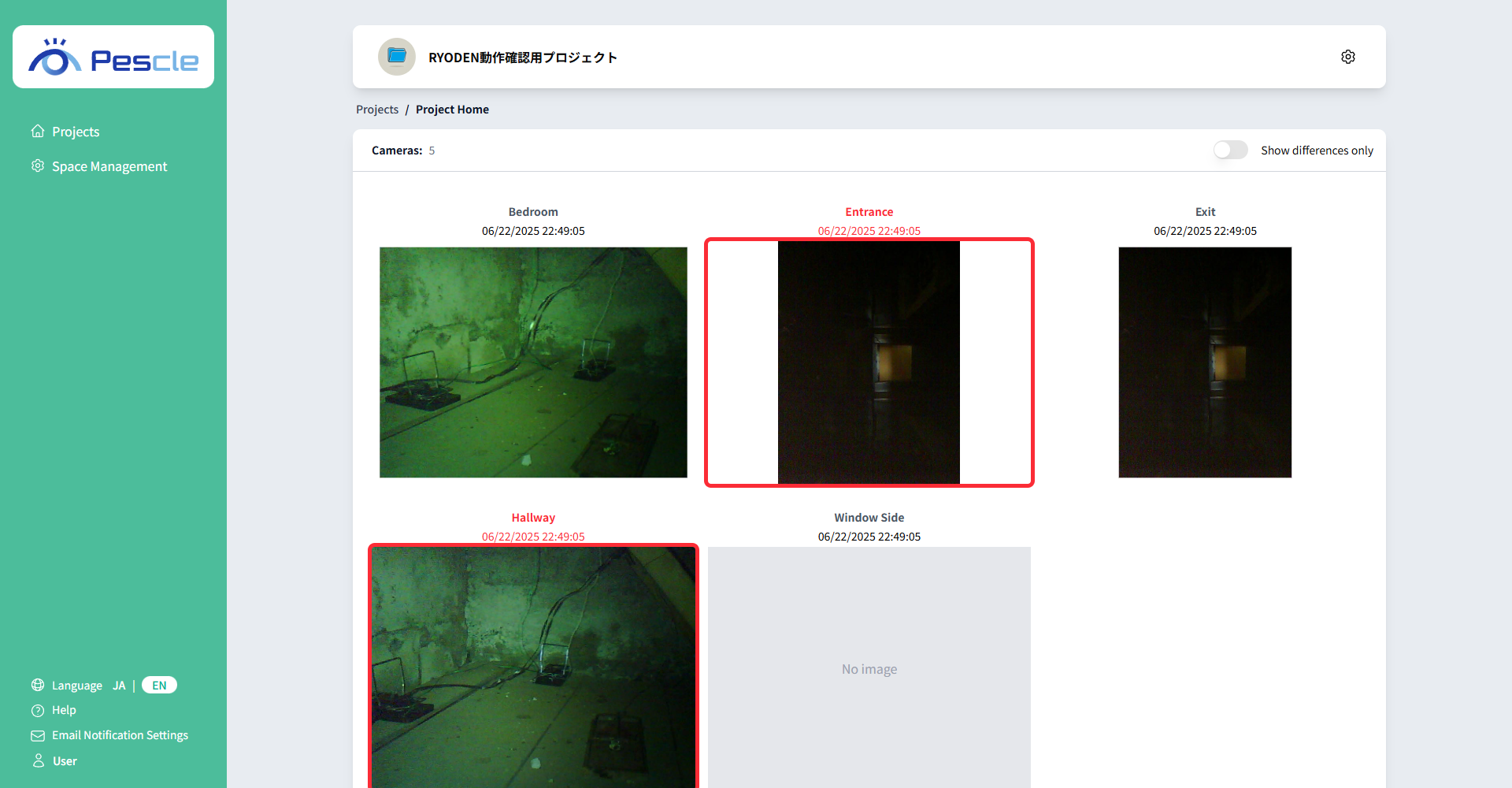
Show Detections Only
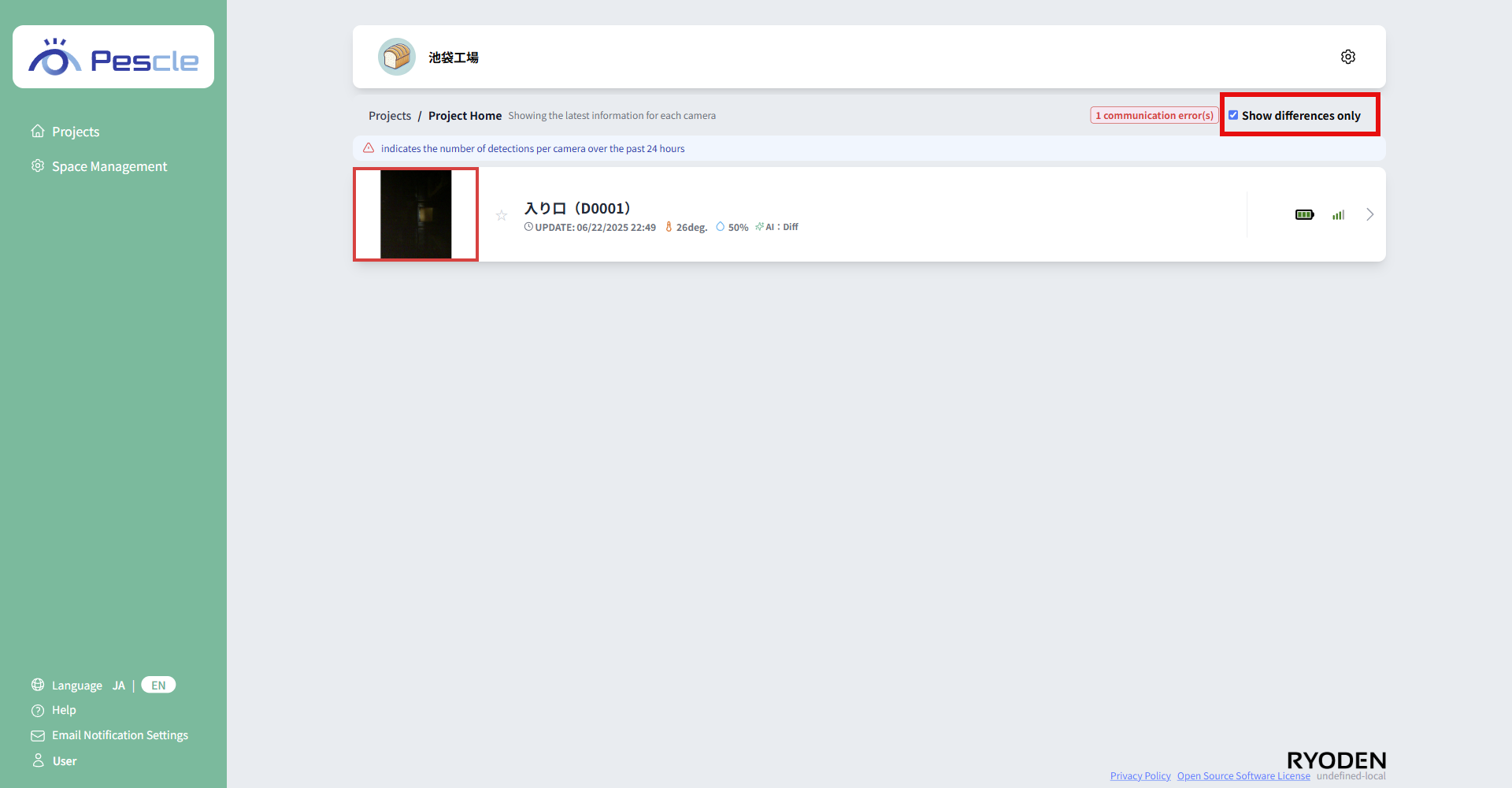
When you check the “Show detections only” checkbox at the top of the screen, only cameras with images that have a red frame indicating a detected difference are displayed.
Go to camera image list
Clicking on each camera row will take you to the image list screen.