About Camera Image Limit
Caution
This feature is intended for project administrators.
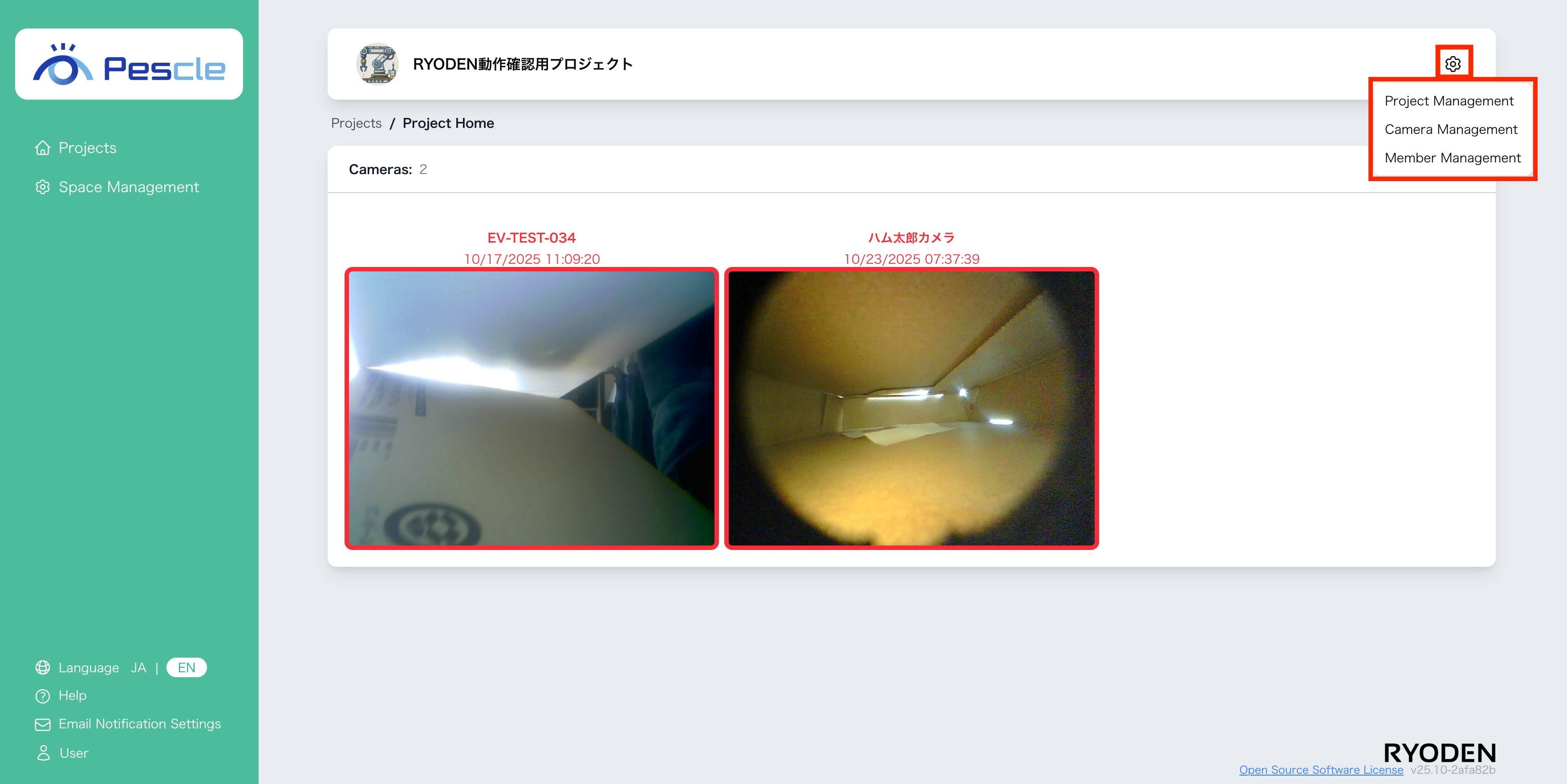
You can access this from the project home screen by clicking the gear icon in the upper right corner.
On the camera management screen, you can check the monthly image transmission count for each camera. A warning icon will be displayed when the transmission count approaches the limit.
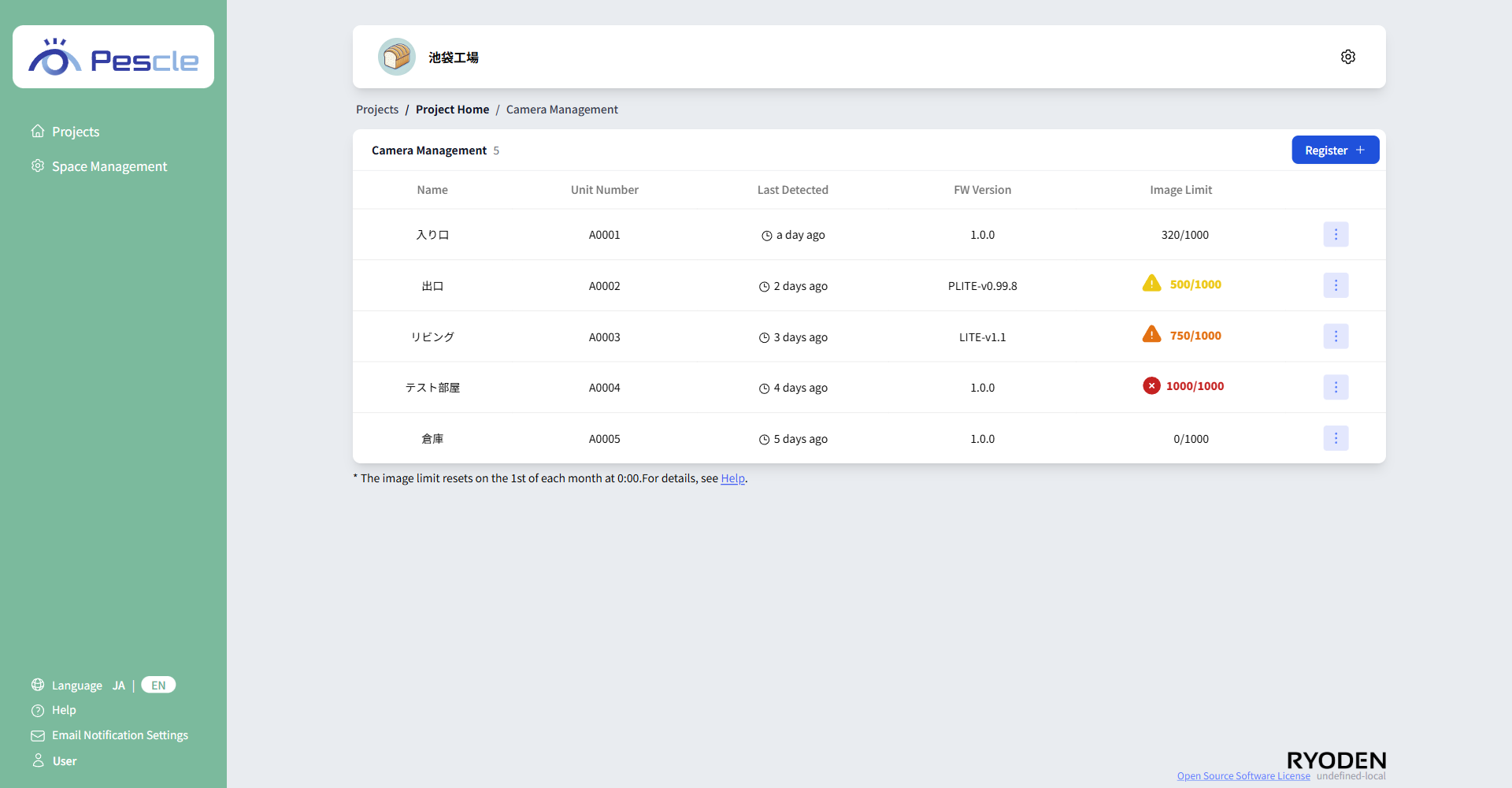
Camera Image Limit Display
The icon and color change according to the monthly image transmission count as follows.
The image limit resets on the 1st of each month at 0:00.
Count Condition |
Color |
Message on Click |
|---|---|---|
Less than 500 |
Black |
None |
500 or more |
Yellow |
Exceeded half of the monthly image limit |
750 or more |
Orange |
Exceeded 3/4 of the monthly image limit |
1000 or more |
Red |
Monthly image limit reached |
Hint
Click the icon to display a detailed message.