2D Code Scanning Troubleshooting
Caution
This feature is for project administrators.
This section explains how to resolve errors such as “Camera access is not permitted” when scanning 2D Codes during camera setup.
Reconfigure Browser Camera Permissions
If you accidentally turned off camera permissions in your browser, you can reset the permissions using the following steps.
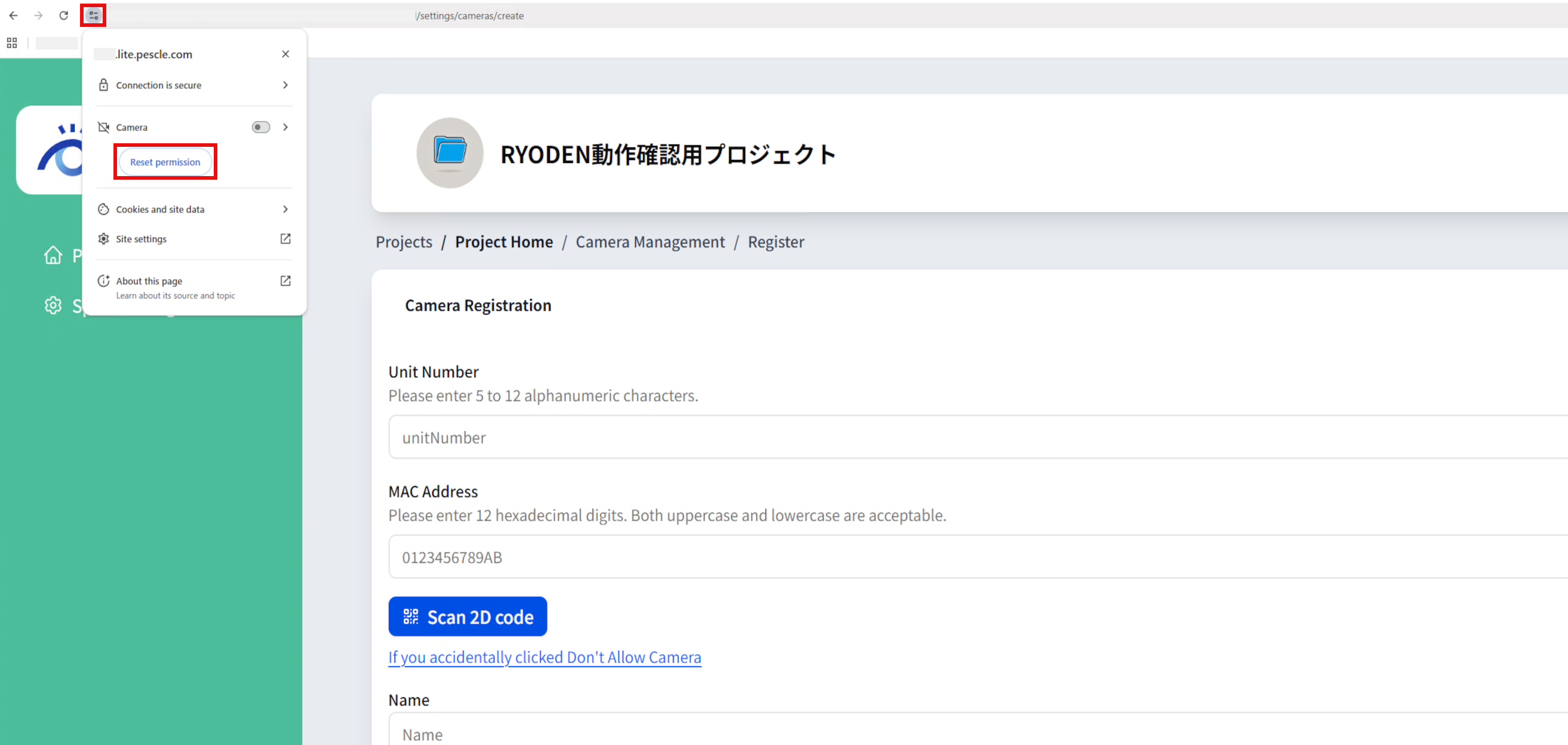
For Google Chrome
Click the icon on the left side of the address bar
Click “Reset permissions” for the “Camera” item
When a popup asking for permission appears again, select allow again
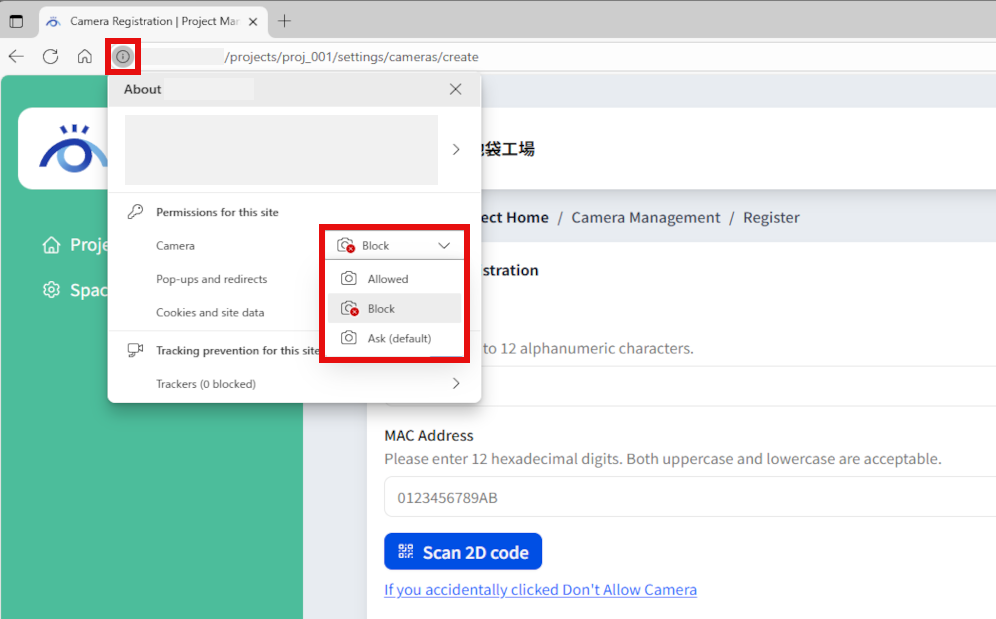
For Microsoft Edge
Click the icon on the left side of the address bar
Select “Allowed” from the “Camera” setting dropdown
Reload the page
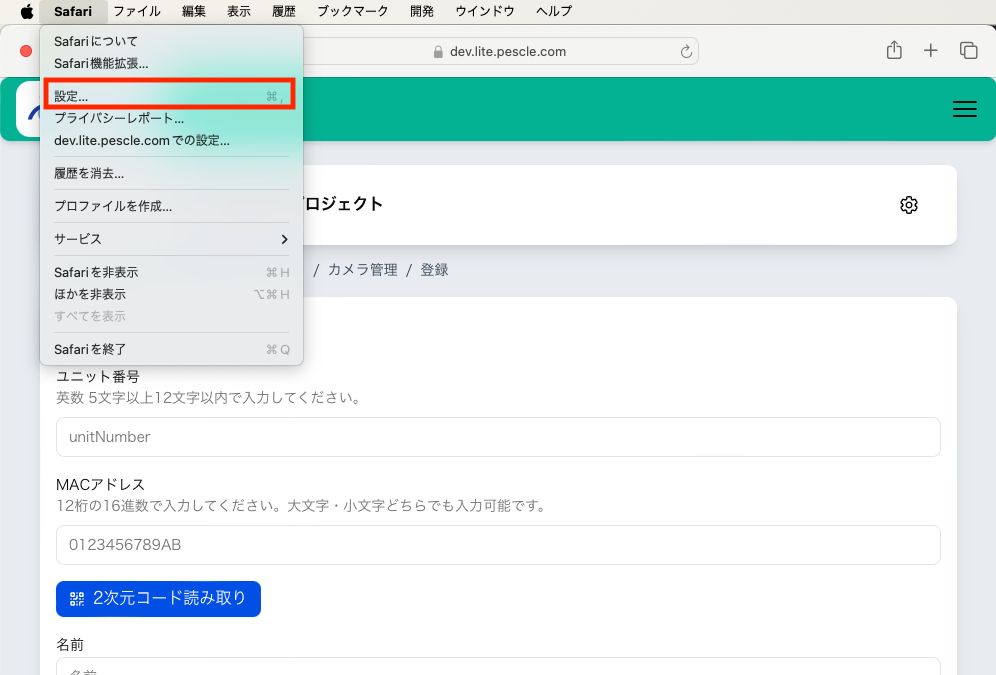
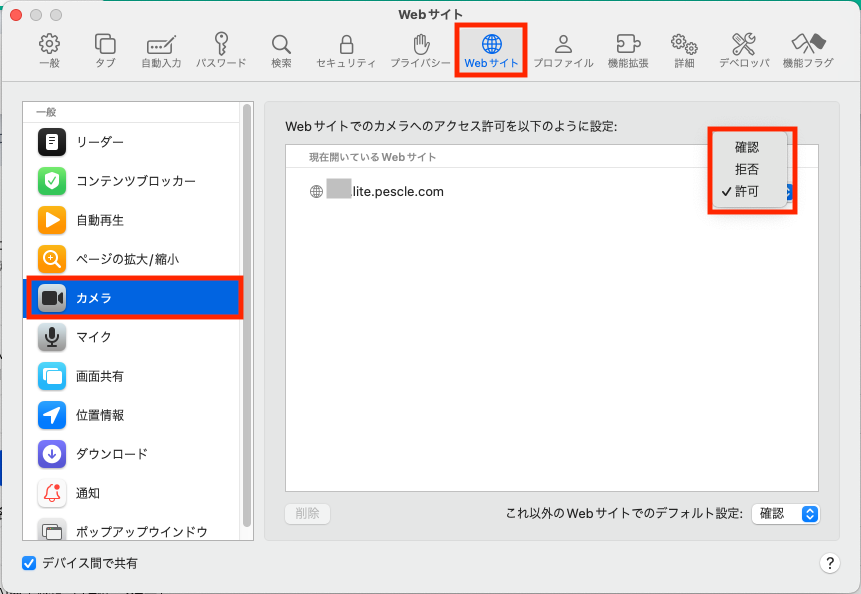
For Safari
Open browser settings
Select the “Websites” tab
Change the site setting for
pescle.lite.comunder “Camera” to “Allow”Reload the page
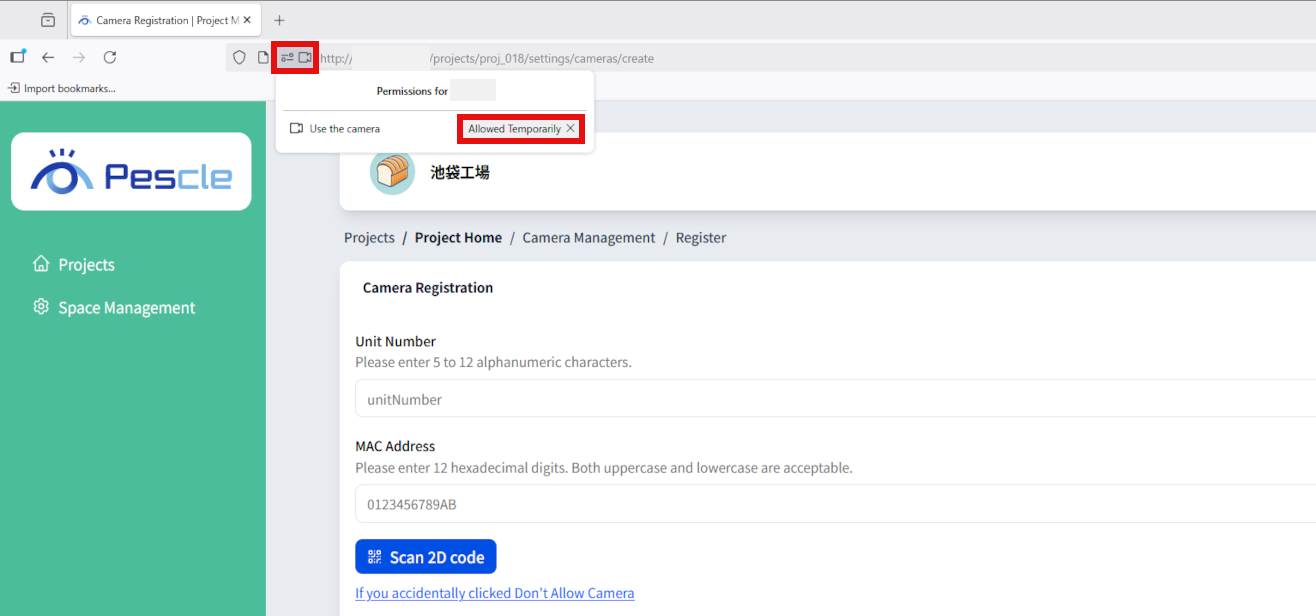
For Firefox
Click the icon on the left side of the address bar
Click the × icon next to “Temporarily blocked” under “Camera usage” to remove it
Reload the page
Camera Permission Settings on Smartphones
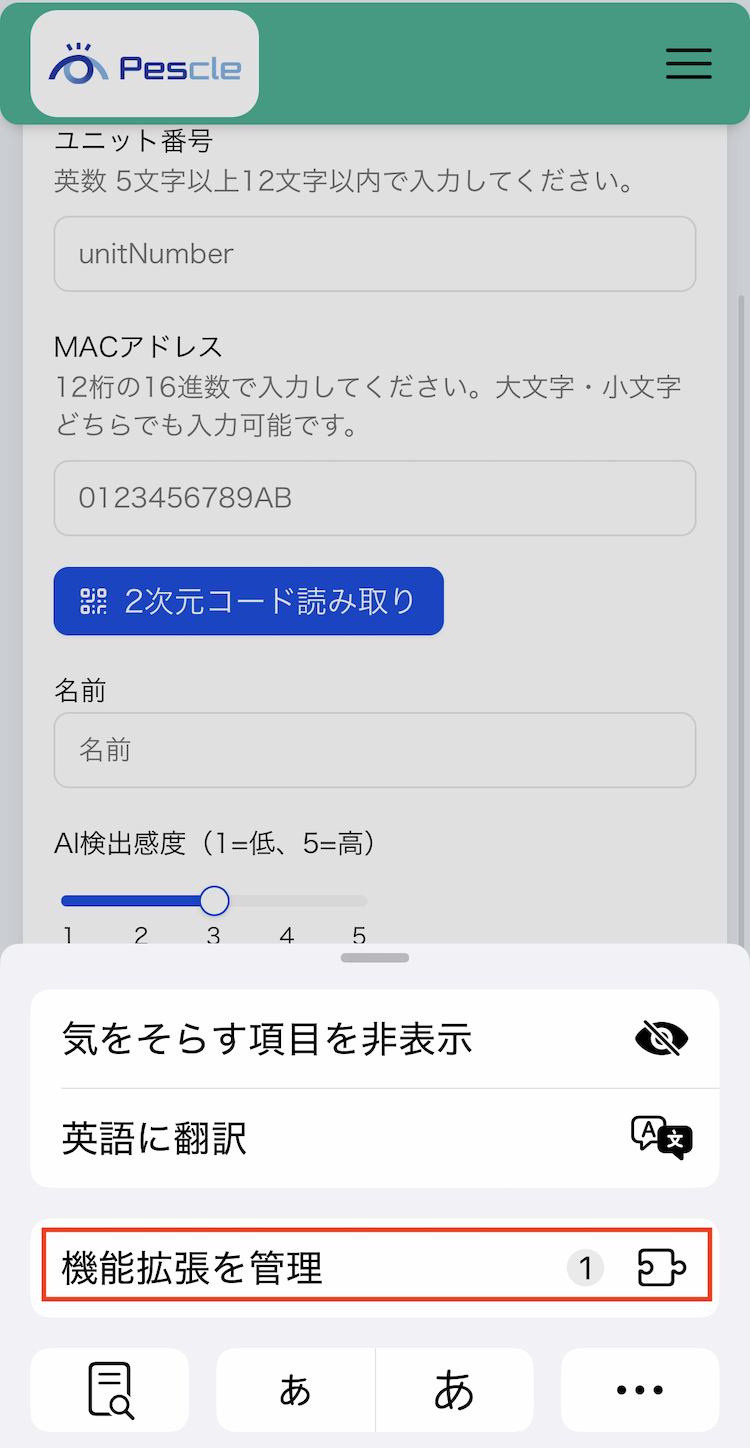
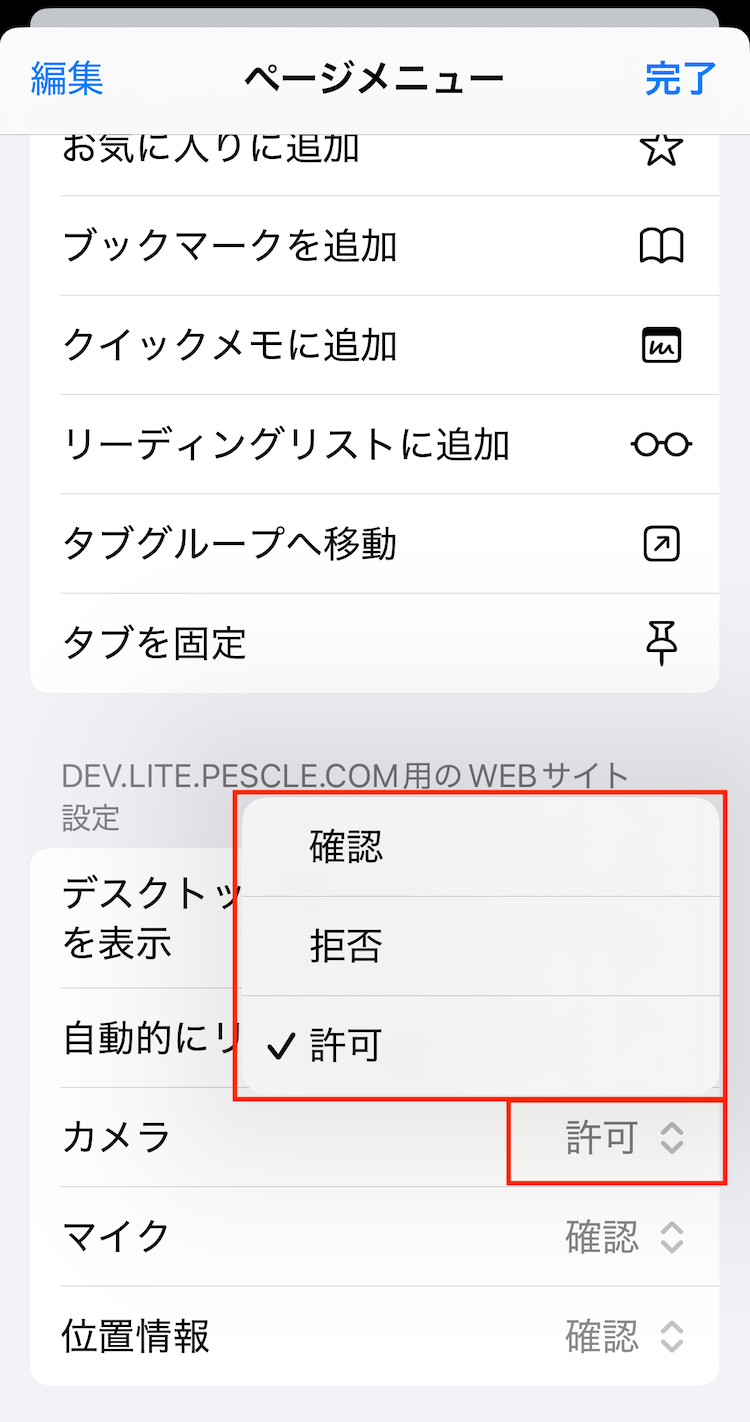
For iPhone (Safari)
Tap the icon on the left side of the address bar
Select “Manage Extensions”
Change the “Camera” setting to “Allow”
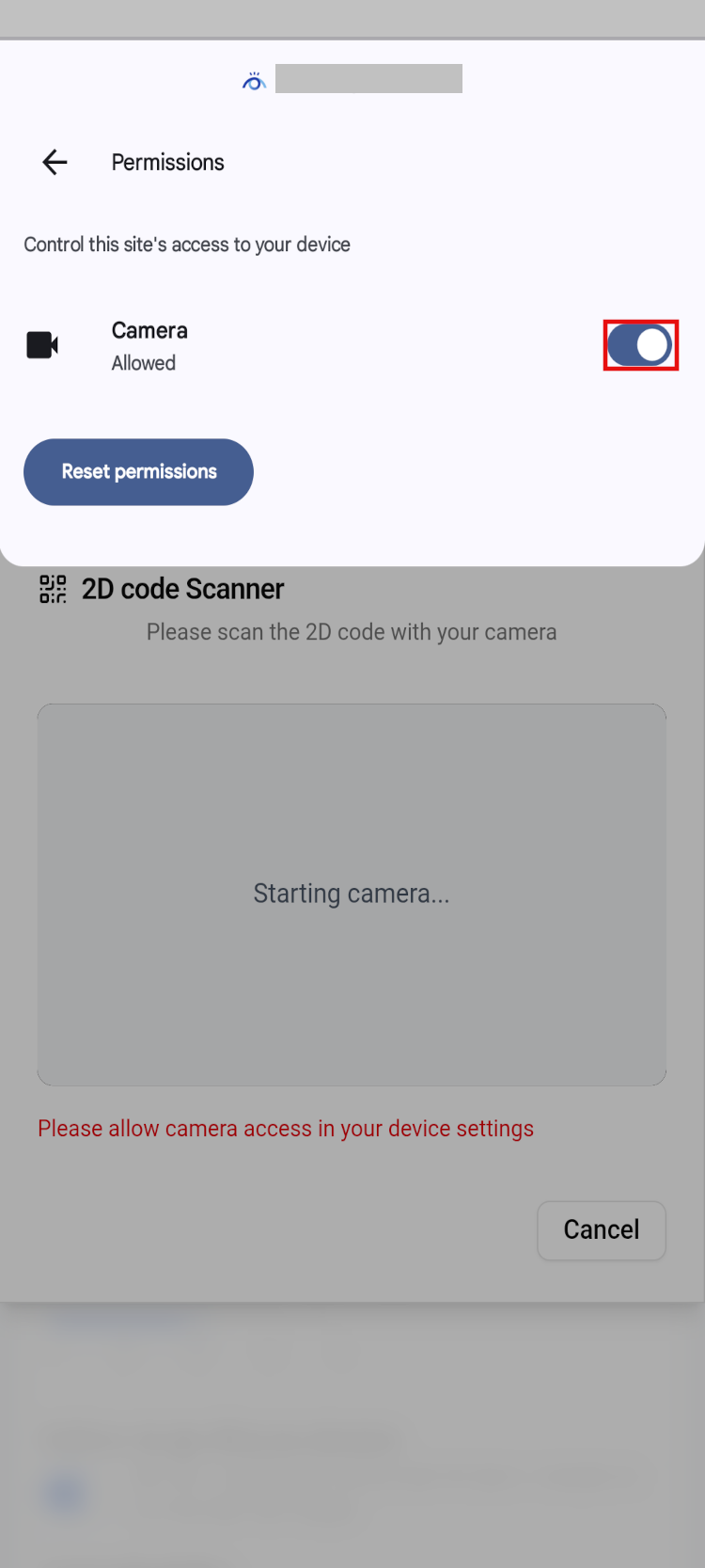
For Android (Chrome)
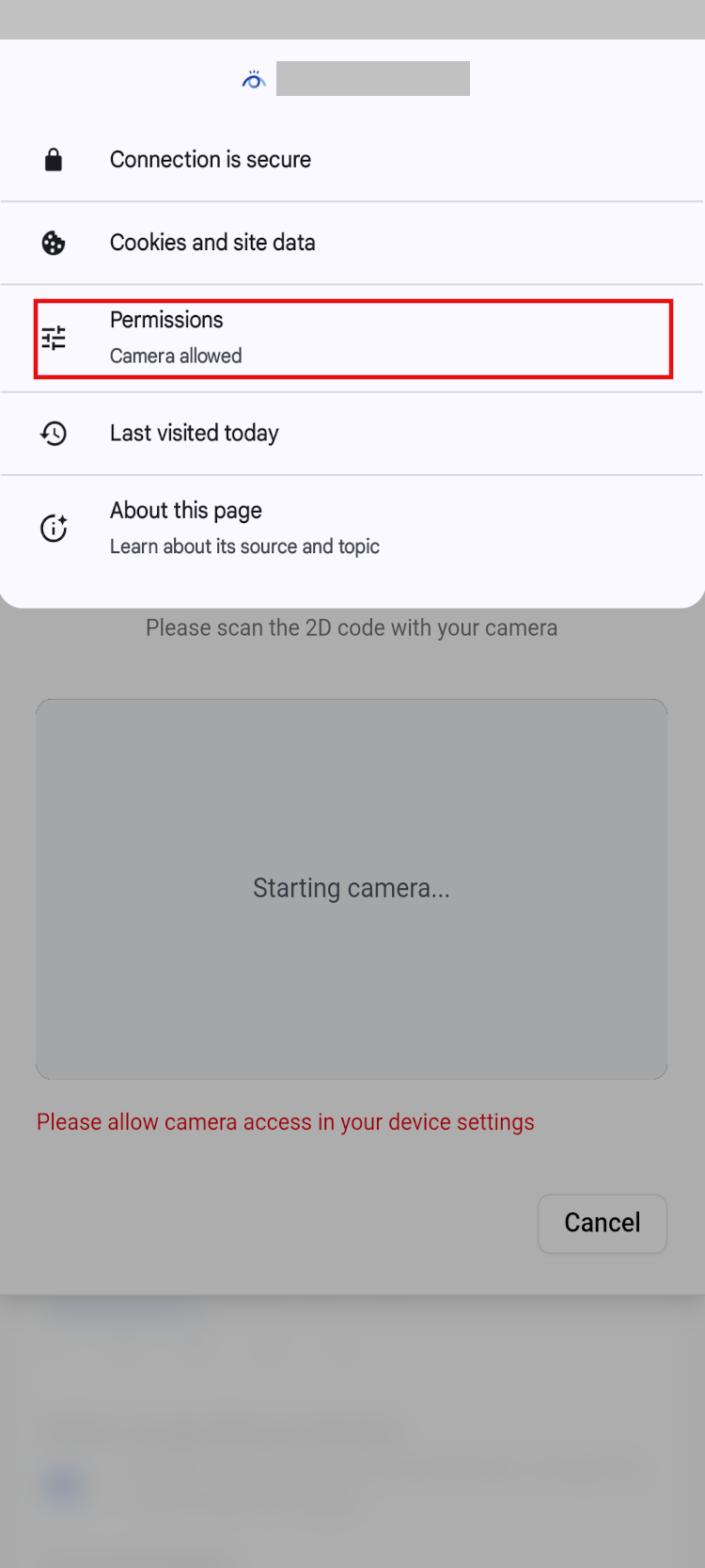
In Chrome, tap the icon on the left side of the address bar
Select “Permissions”
Turn ON the “Camera” toggle button
Reload the page
If the Problem Still Persists
If the above methods do not resolve the issue, please try the following:
Restart your browser
Try a different browser
Manually enter the unit number and MAC address
If the problem still persists, please contact support.