How to view camera management
Caution
This feature is for project administrators.
You can access this from the project home screen by clicking the gear icon in the upper right corner.
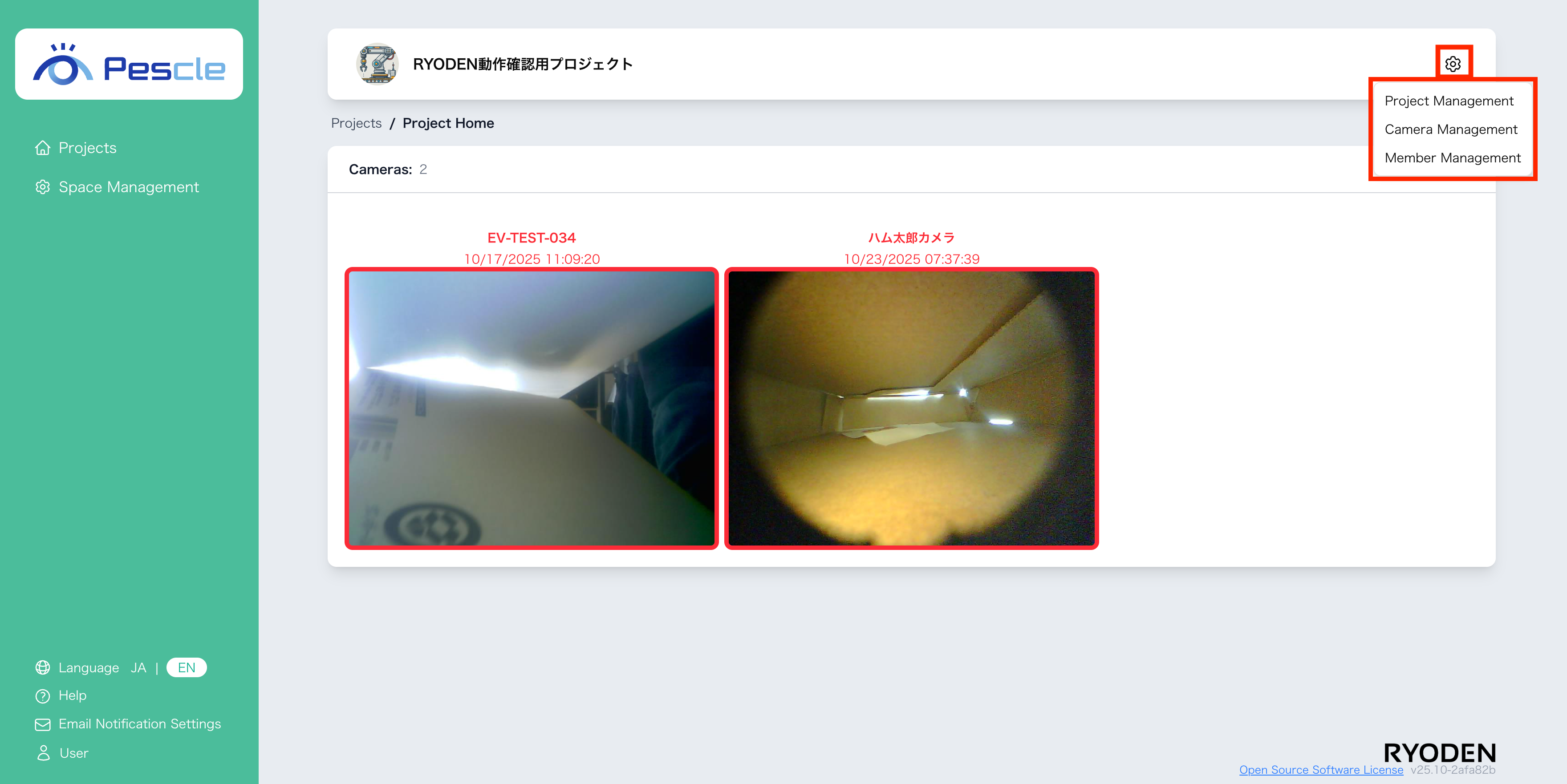
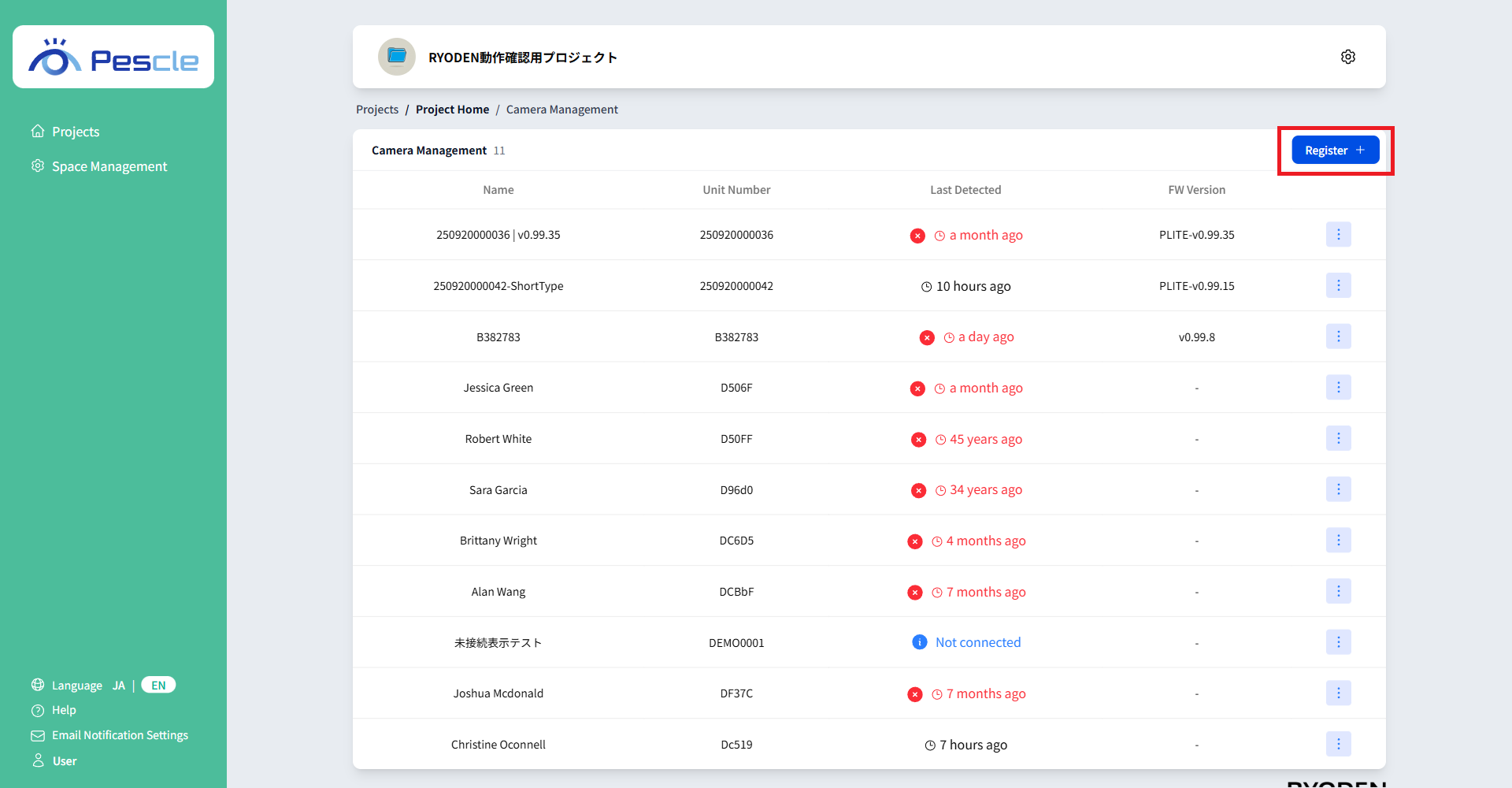
The camera management screen displays information about each camera in the project.
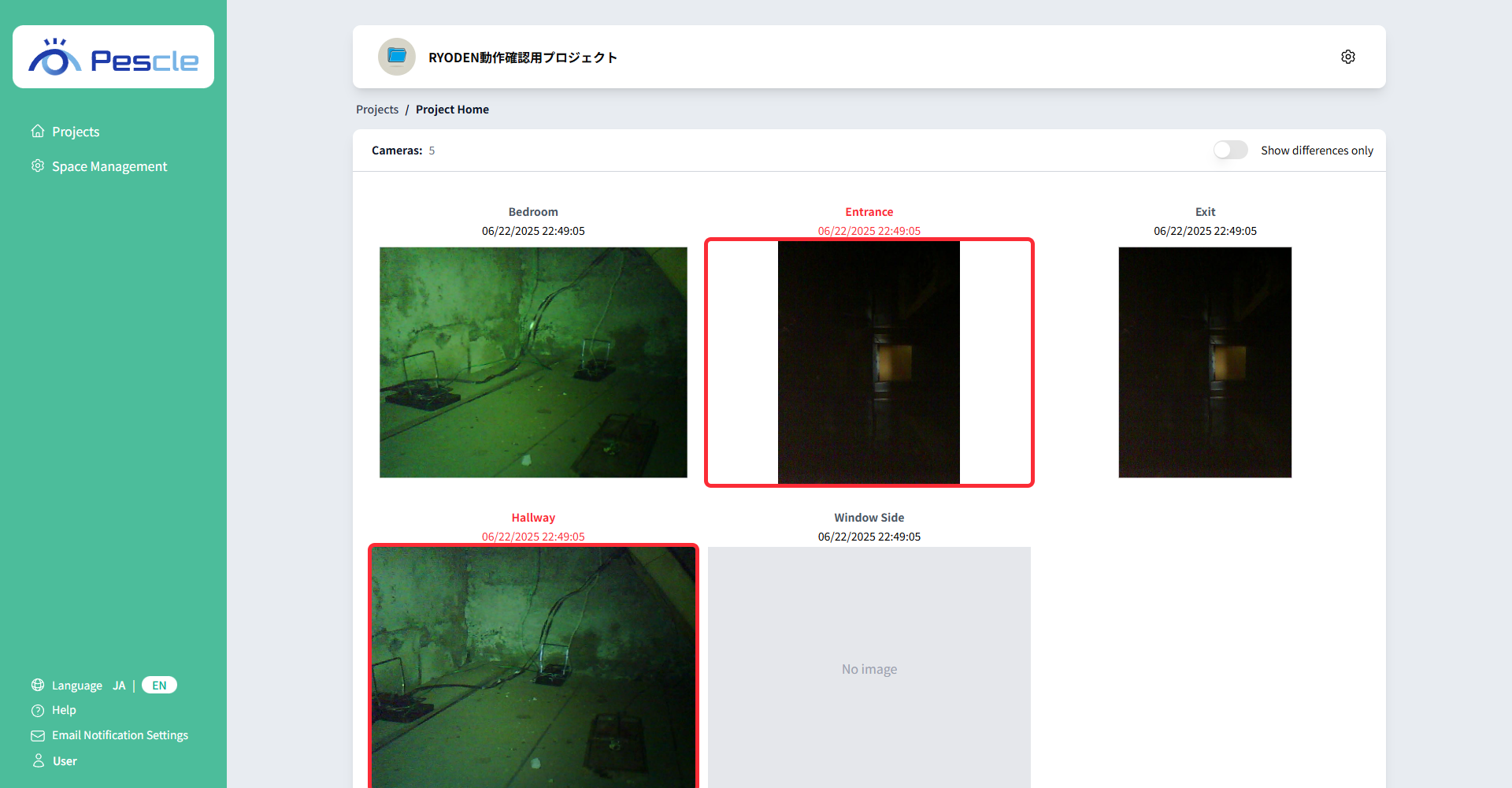
Camera Management Overview
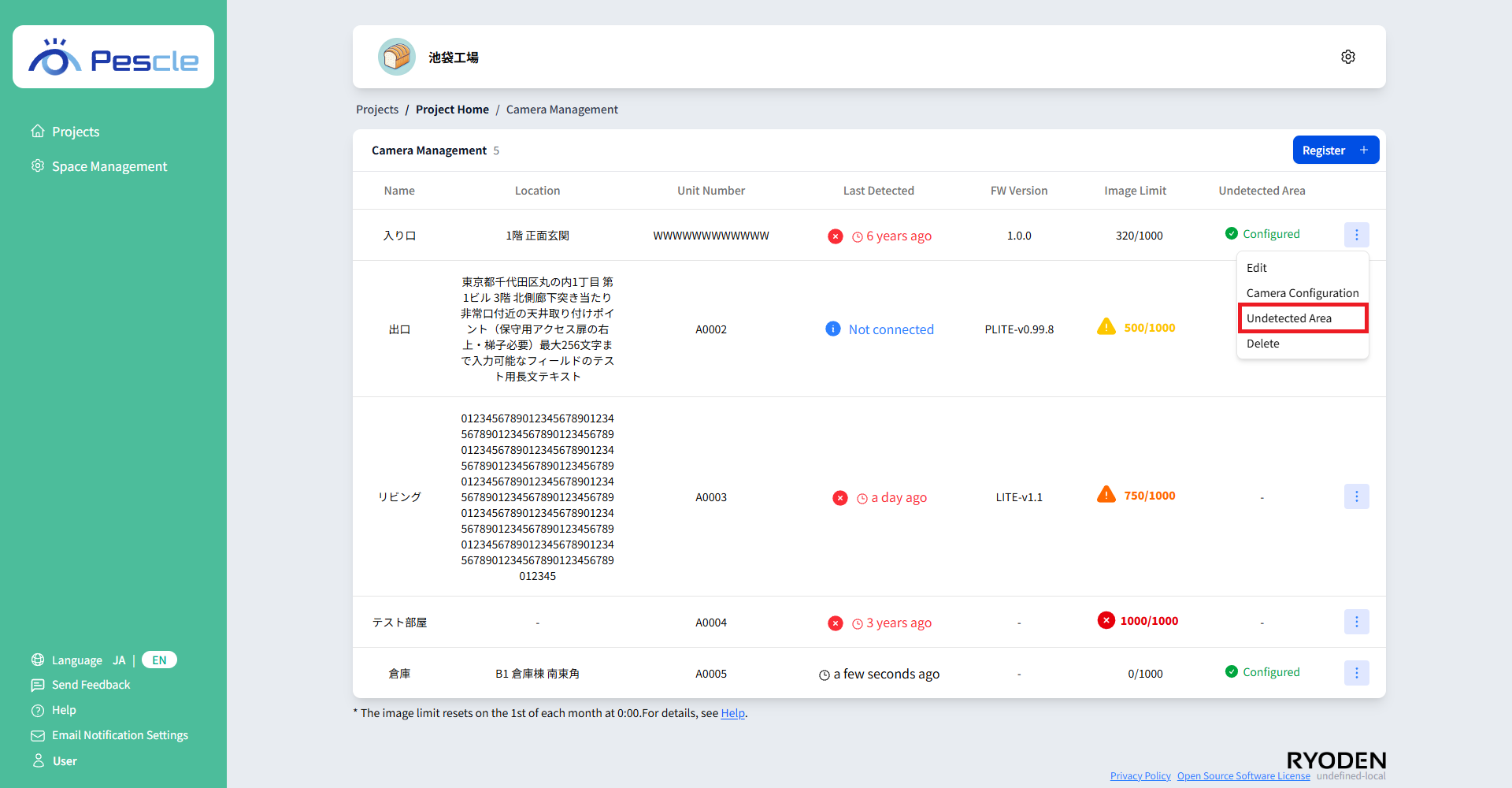
The camera list displays the name, location, unit number, detection date and time, firmware version, image limit and undetected area.
On the detection date and time, if there is no connection, a blue exclamation mark icon will be displayed, and if there is no connection, a red cross icon will be displayed.
In the undetected area column, “Configured” is displayed for cameras that have already been configured.
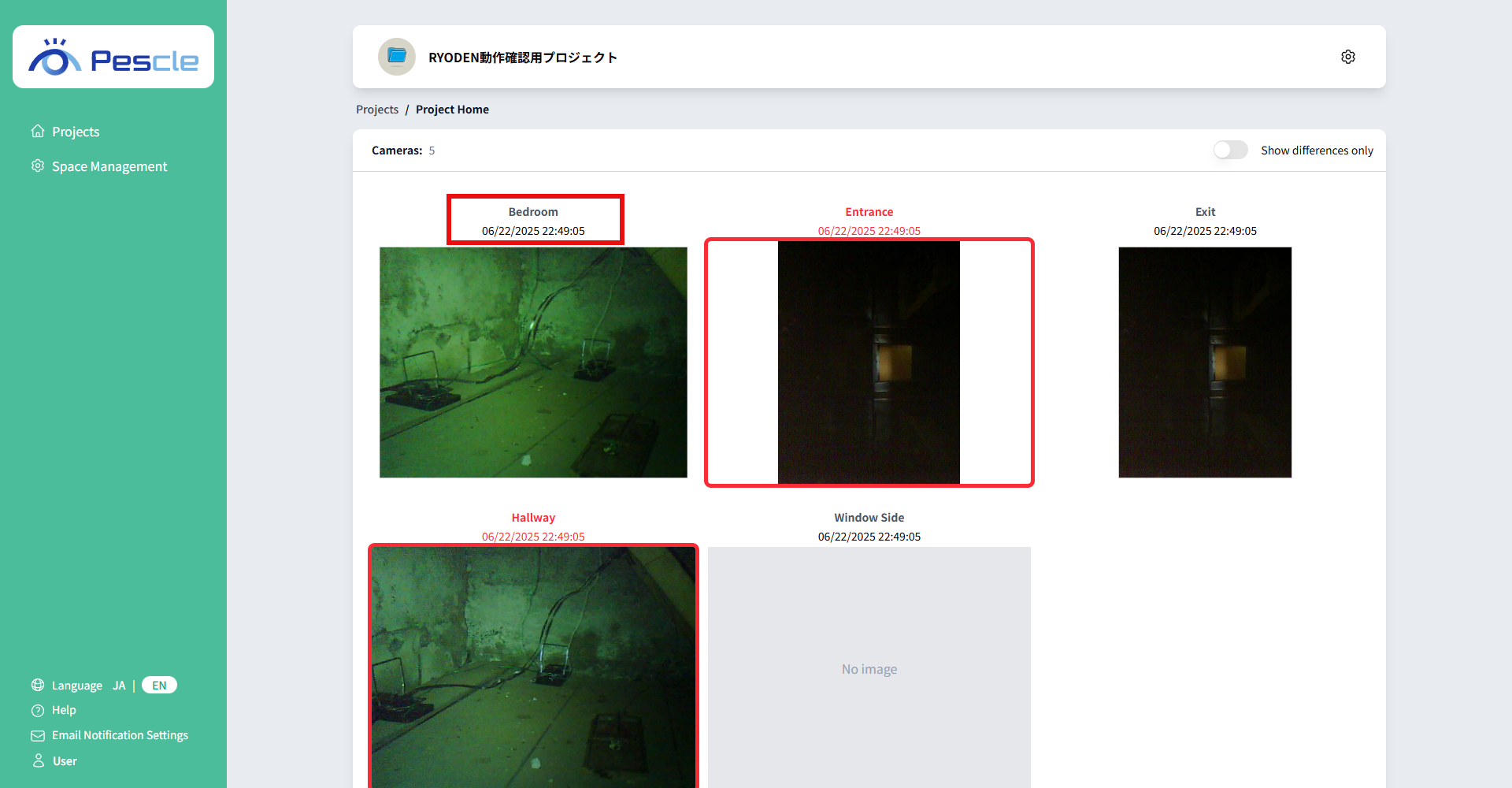
How to Register a Camera to a Project
You can register the camera by pressing the register button on the top right.
For more information, see How to Register a Camera to a Project.
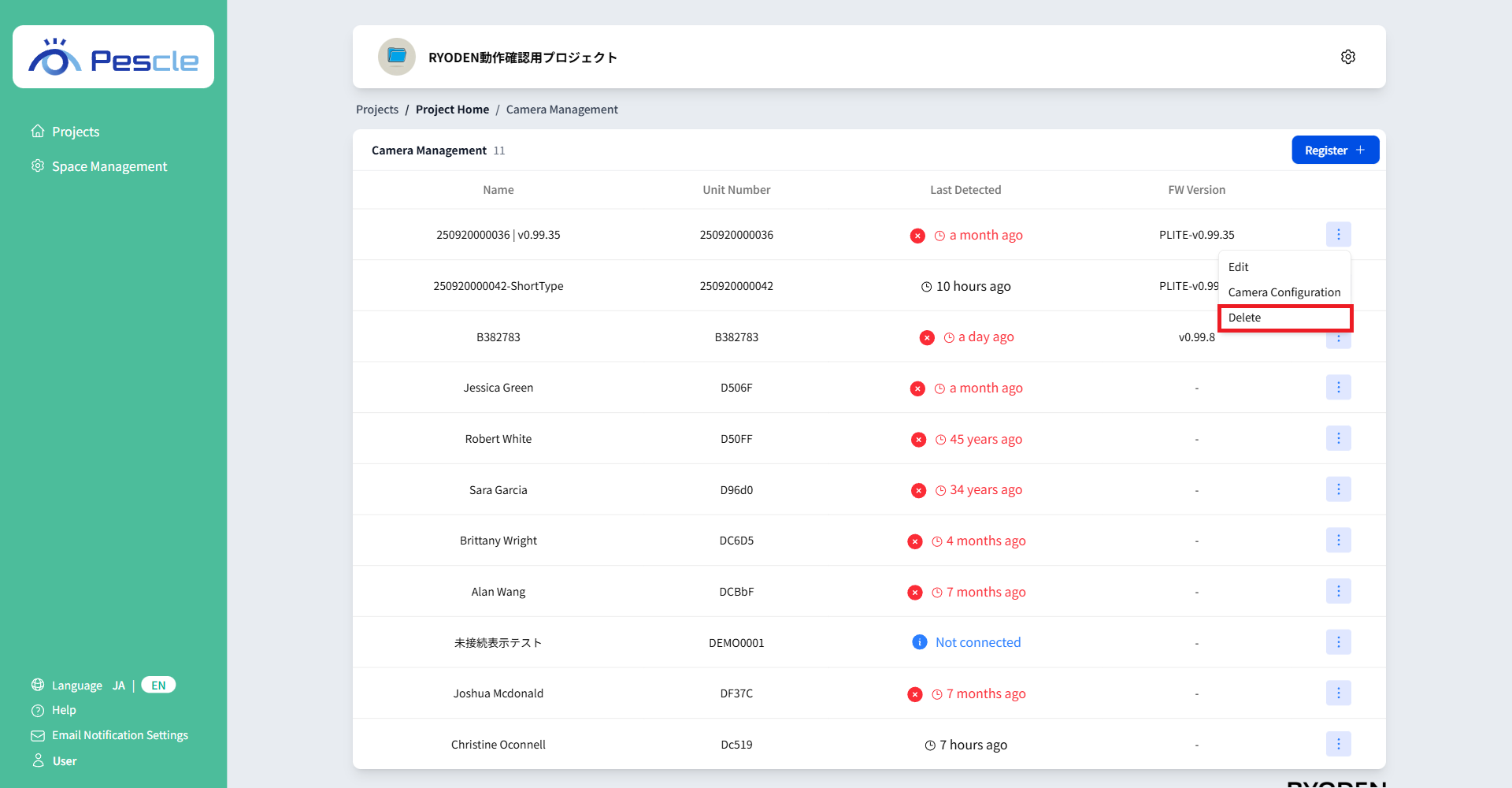
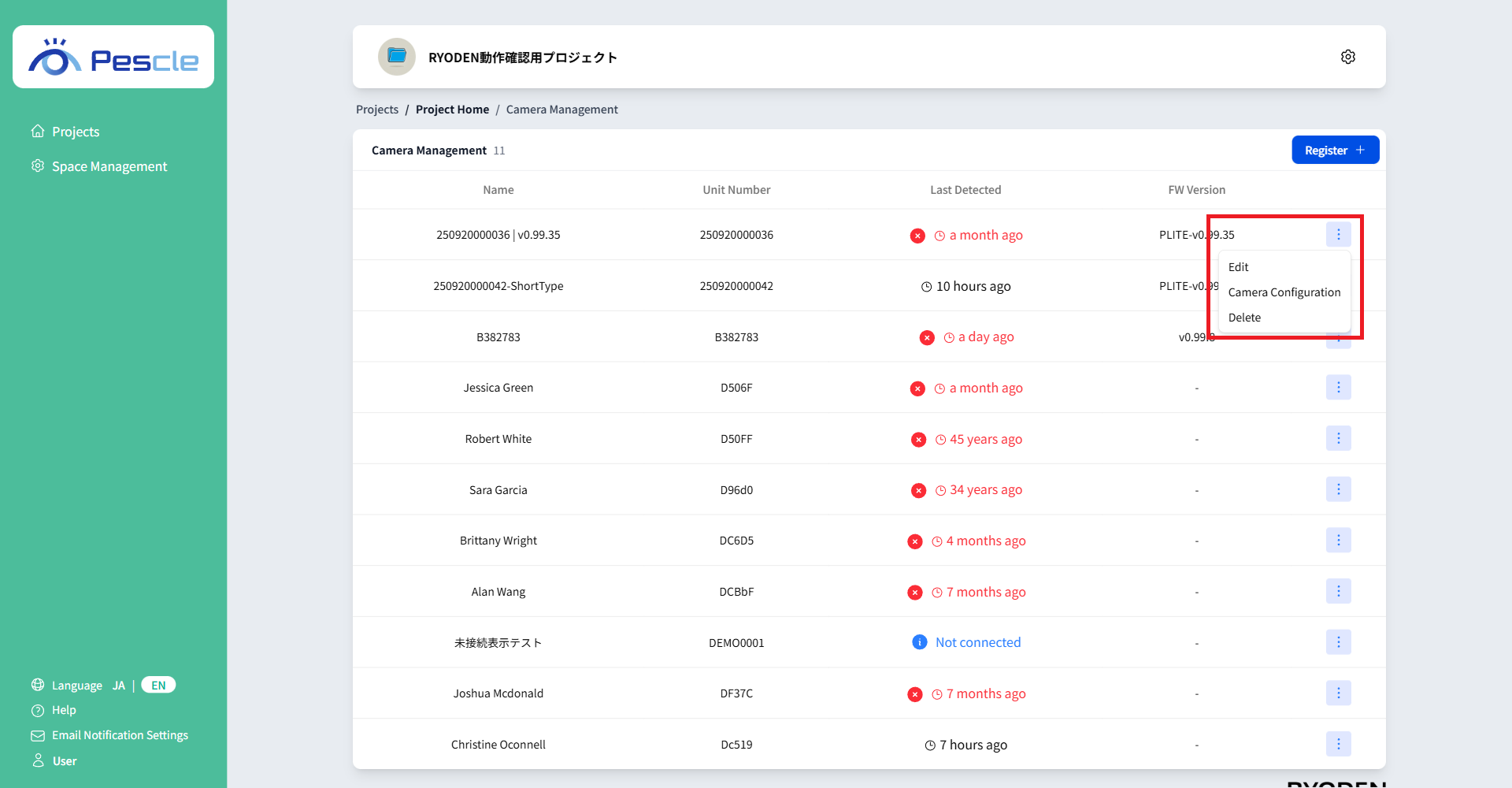
How to display the menu
Click the three dots on the right side of the camera to display the menu.
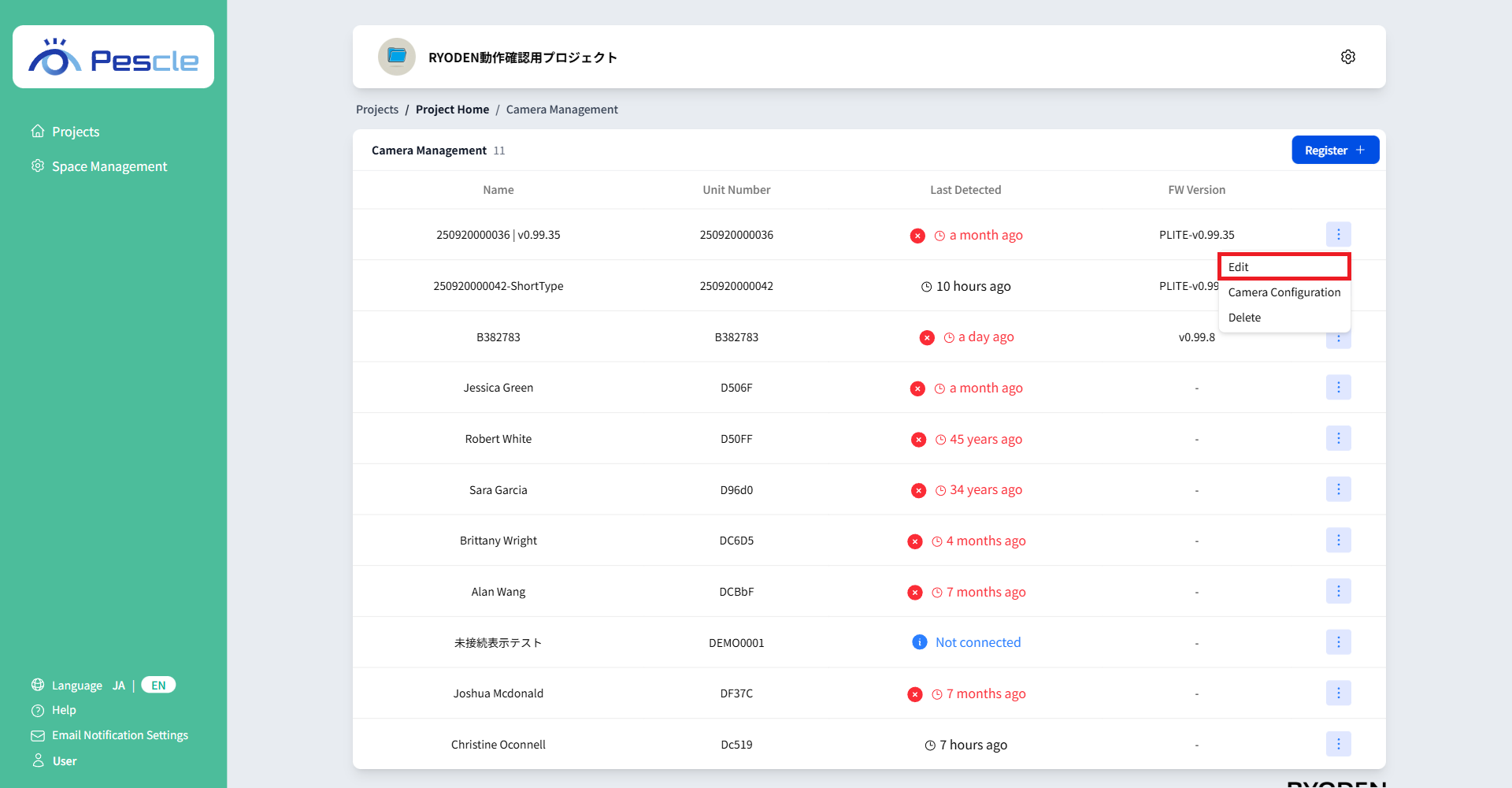
How to change the camera editing
Press Edit in the menu to change the camera settings.
For more information, see How to change the camera editing.
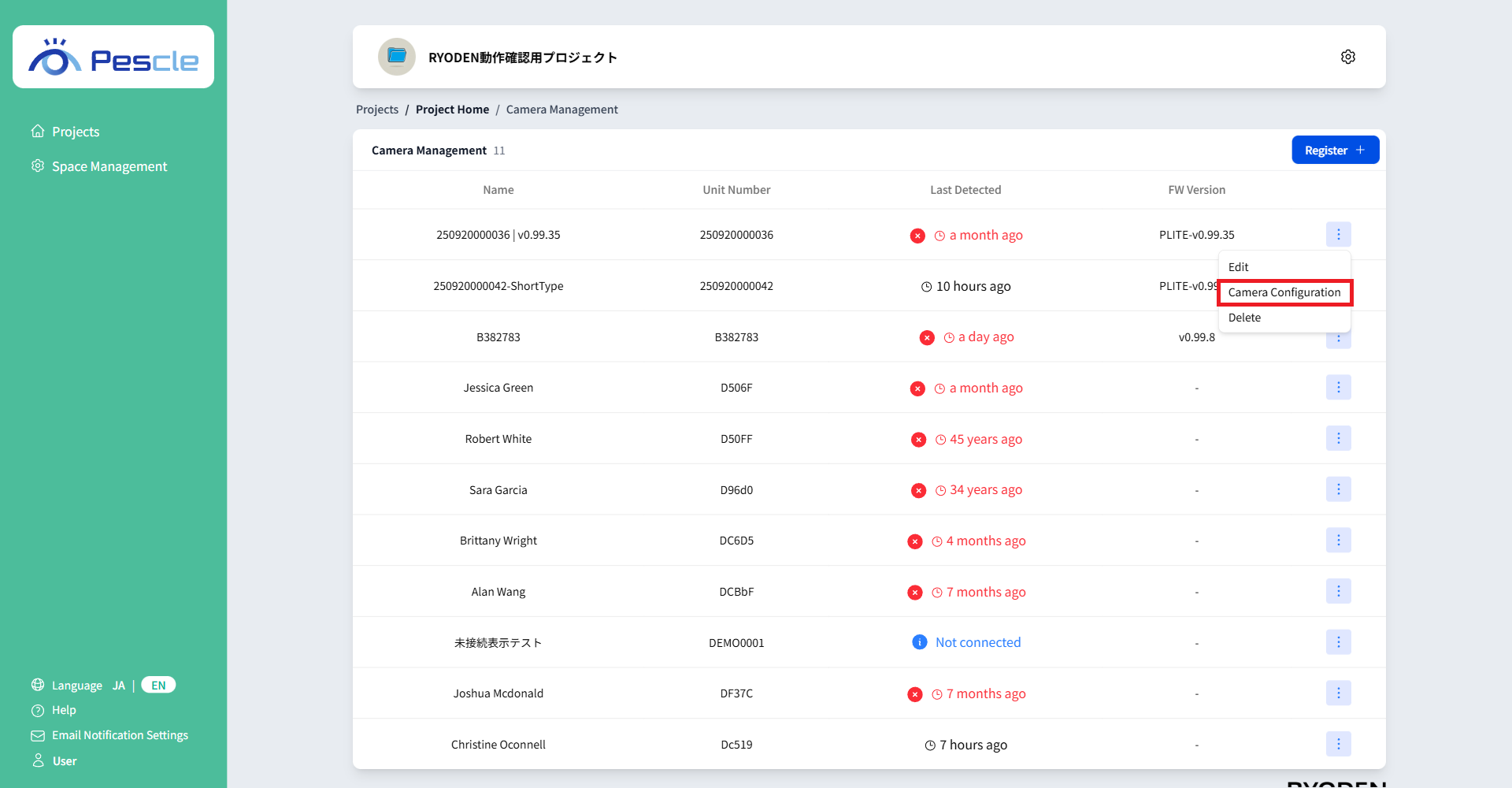
How to change Camera Configuration
You can change the Camera Configuration by pressing the Camera Configuration menu.
For more information, see How to change Camera Configuration.
How to Configure the Undetected Area of a Camera
You can configure the undetected area of the camera by pressing the Undetected Area menu.
For more information, see How to Configure the Undetected Area.
How to Delete a Camera
You can delete the camera by pressing Delete in the menu.
For more information, see How to Delete a Camera.