How to View Camera Image List
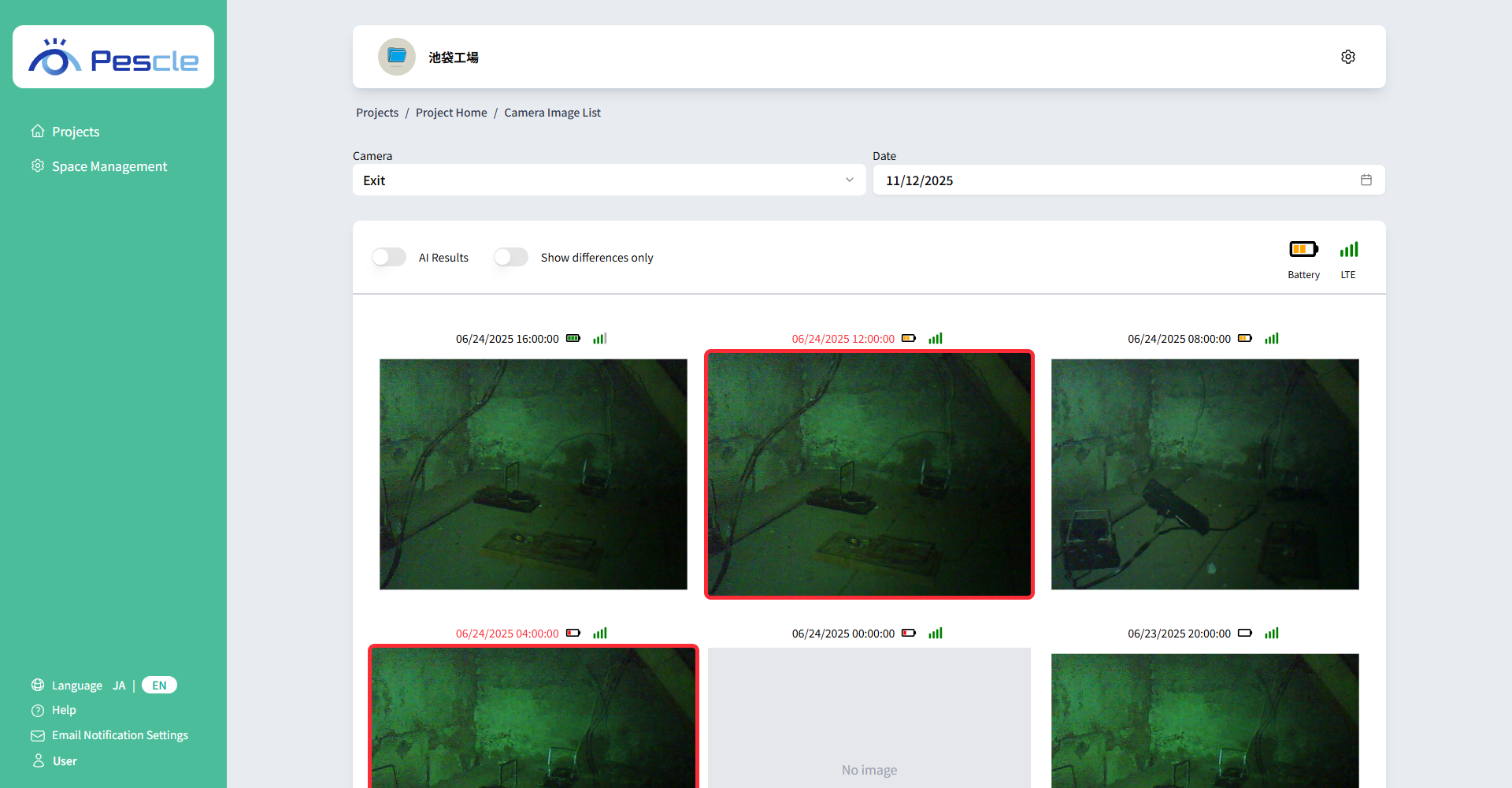
Images from the target camera are displayed in order from newest, going back from today.
Tip
Deleted images are displayed with a trash icon and a “Deleted” label.
Camera Image List Search
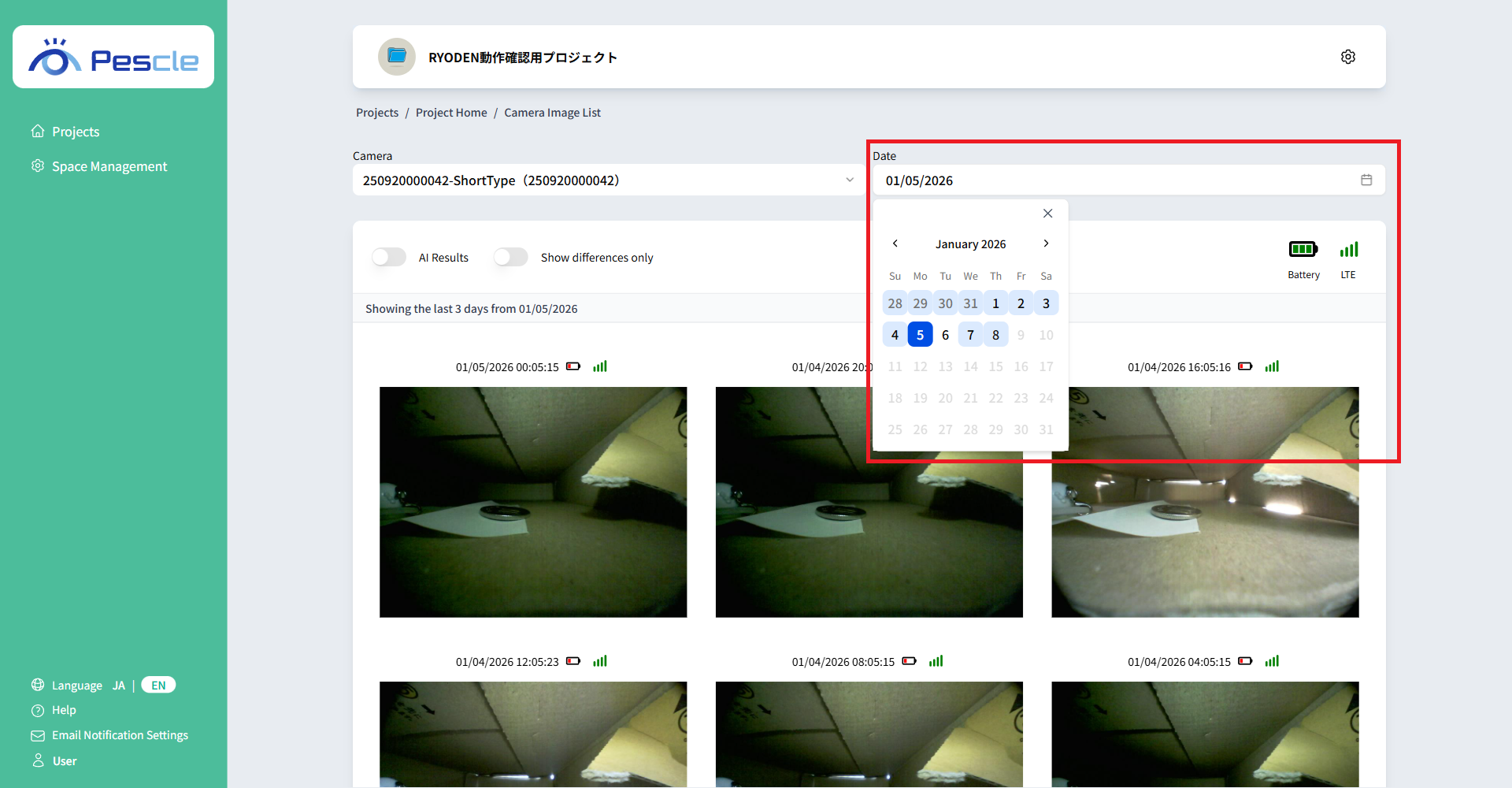
To view past situations, change the date.
Selected dates are dark blue, dates with data are light blue, and dates with differences are light orange.
How to Switch the Items per Page
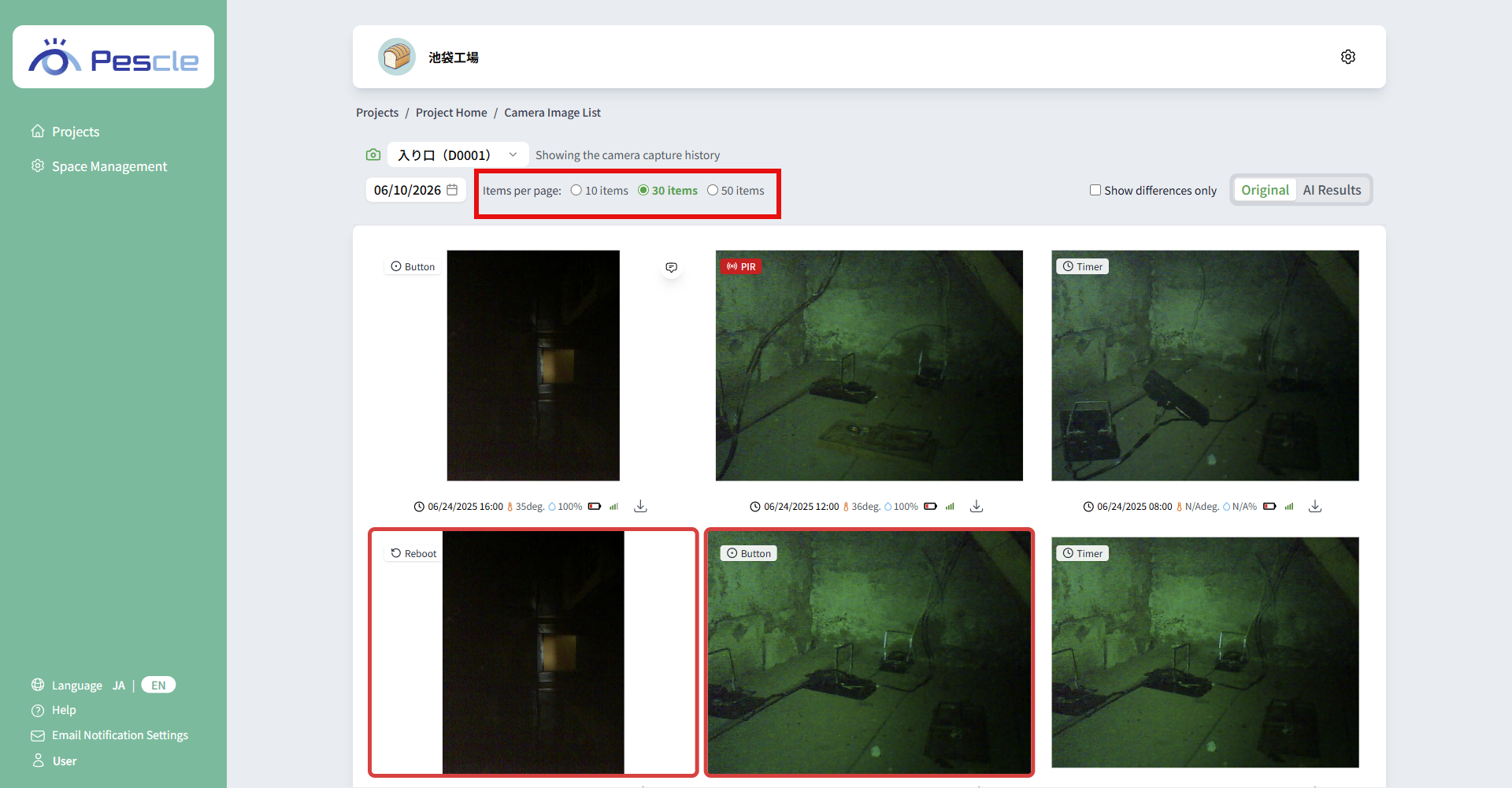
By selecting 10, 30, or 50 in “Items per page”, you can switch the number of images displayed.
The selected number of images are displayed in order from newest, going back from the selected date.
How to View Camera Images
The “Capture Mode” is displayed in the top left corner of the image.
Below the image, you can check the “Shooting Date and Time”, “Temperature”, “Humidity”, “Battery Level”, and “Signal Strength”.
Clicking the download icon allows you to download the captured image.
When an image difference is detected, a red frame will be displayed, and if alert email reception is enabled, an email will be sent.
If there are comments, an icon will appear in the top right corner of the image.

Tip
Clicking on an image allows you to view “Camera Image Details”. For more information, please refer to How to View Camera Image Details.
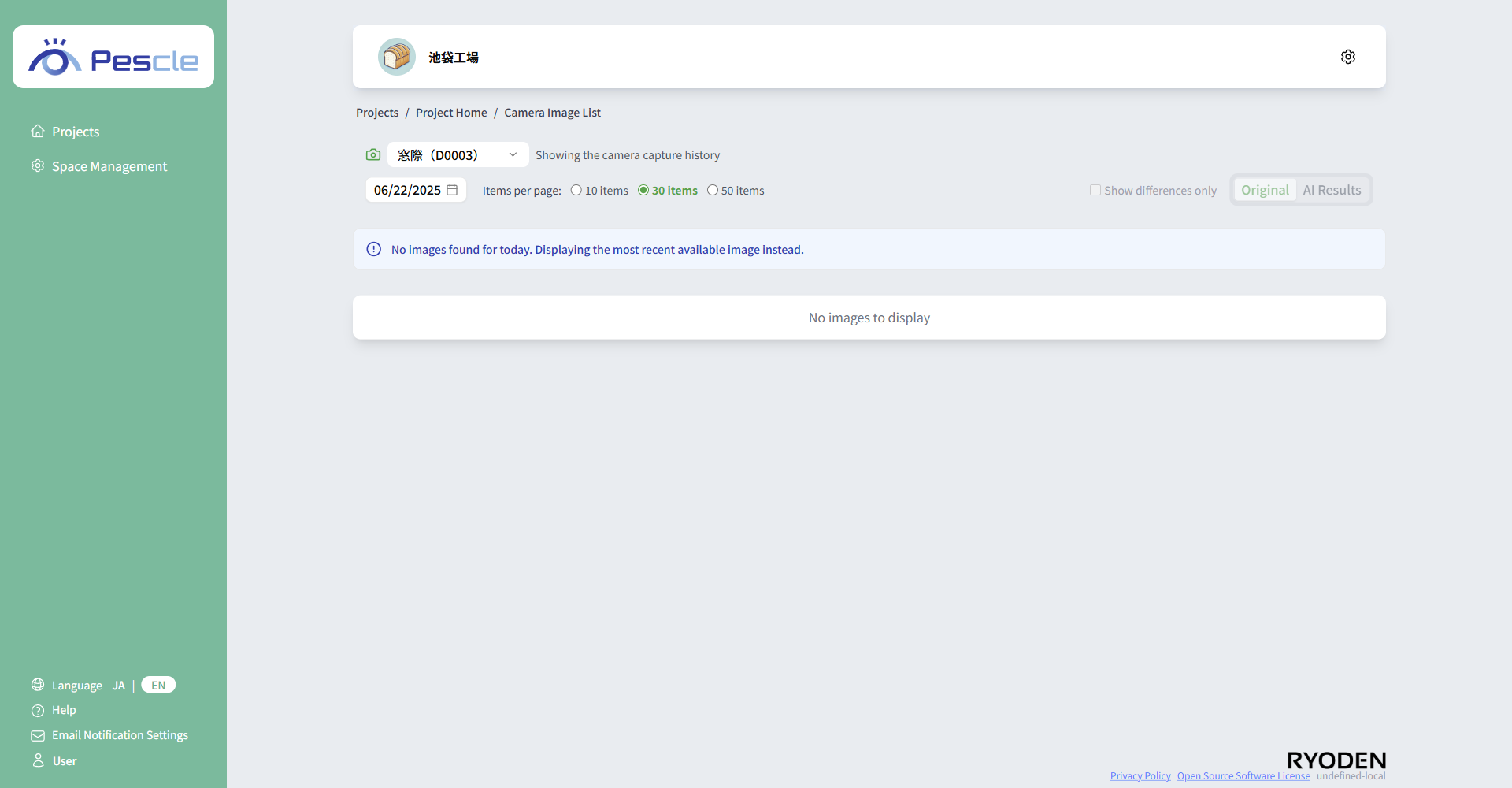
When displaying the camera image list, by default it shows images for today’s date.
However, if there are no images for today, it displays images for the most recent date that has images.
When displaying the latest images that are not from today, the message No images found for today. Displaying the most recent available image instead. will be shown.
Tip
By clicking the “Original” or “AI Results” buttons, you can switch between the original image before diagnosis and the AI result image after diagnosis.
Tip
When you check ‘Show differences only’, only images with red frames indicating detected differences will be displayed.